Document
Learn how to manage your team's global preferences.
Overview
Document preferences allow you to set the default settings when creating new documents and templates.
For example, you can set the default language for documents sent by the team, or set the allowed signatures types.
Preferences
Document preferences can be set on either the organisation or team level.
By default, teams inherit the preferences from the organisation. You can override these preferences on the team level at any time.
To access the preferences, navigate to either the organisation or teams settings page and click the Document tab under the Preferences section.
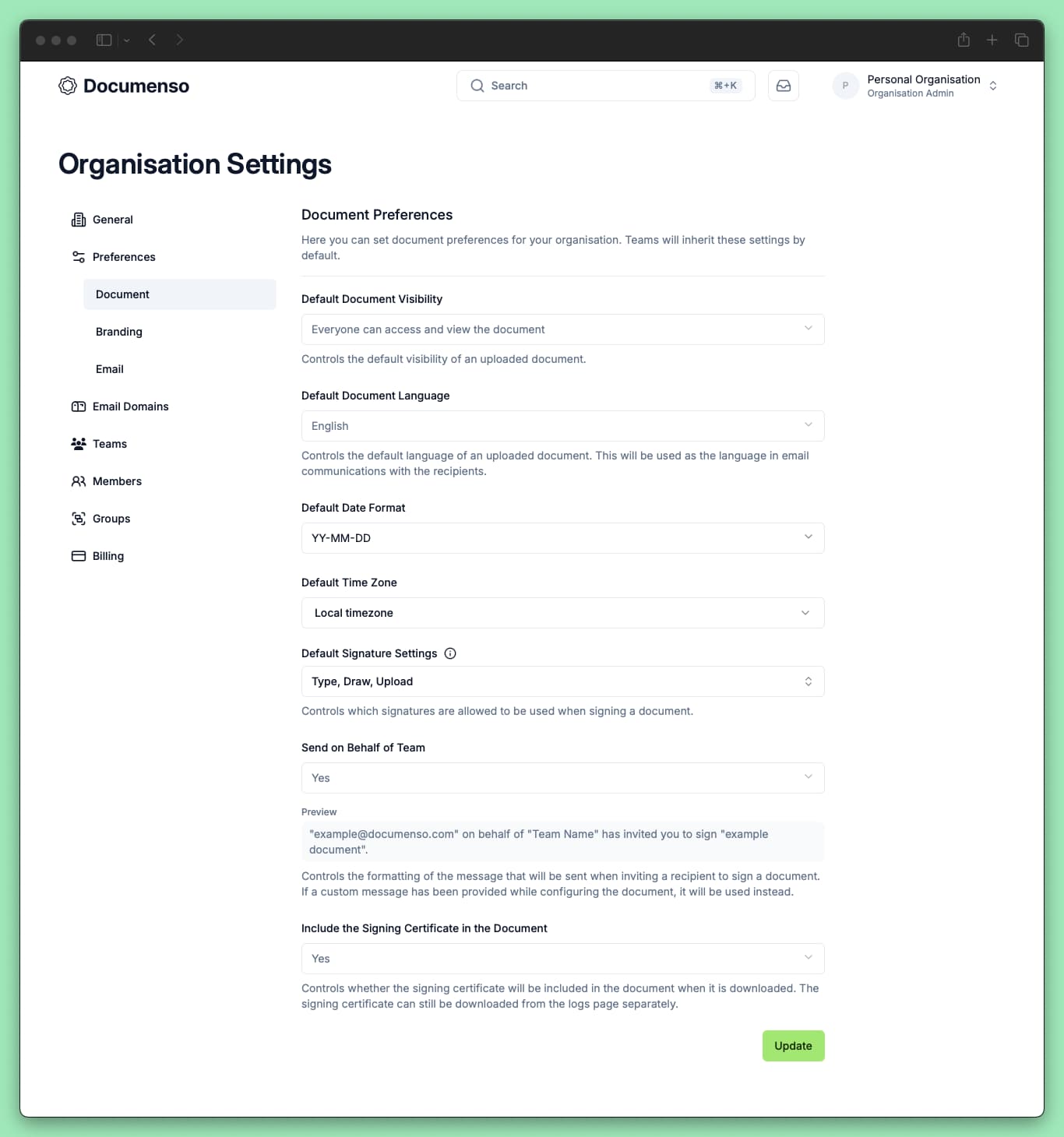
| Setting | Description |
|---|---|
| Default Document Visibility | Default visibility for documents created by team members. See document visibility. |
| Default Document Language | Default language for documents and for email communications with recipients. |
| Default Date Format | Date format used for date fields and signing. |
| Default Time Zone | Timezone used for date fields and signing. |
| Default Signature Settings | Which signature types (typed, drawn, uploaded) recipients can use when signing. |
| Send on Behalf of Team | Whether the sender's name appears in team emails. See sender details below. |
| Include the Signing Certificate | Whether the signing certificate is embedded in signed PDFs. The certificate is always available separately from the logs page. |
| Include the Audit Logs | Whether the audit logs are embedded in the document when downloaded. The audit logs are always available separately from the logs page. |
| Default Recipients | Recipients that are automatically added to new documents. Can be overridden per document. |
| Default Envelope Expiration | How long recipients have to sign before the signing link expires. See recipient expiration. |
| Default Signing Reminders | When and how often to email recipients who have not yet signed. See signing reminders. |
| Delegate Document Ownership | By default, documents created with a team API token are owned by the user who created the token. Enable this setting to let supported API requests assign ownership to another team member. |
| AI Features | Enable AI-powered features such as automatic recipient detection. Only shown if AI features are configured on the instance. |
Document visibility, language, and signature settings can be overridden per document.
Sender Details
If the Sender Details setting is enabled, the emails sent by the team will include the sender's name. The email will say:
"Example User" on behalf of "Example Team" has invited you to sign "document.pdf"
If the Sender Details setting is disabled, the emails sent by the team will not include the sender's name. The email will say:
"Example Team" has invited you to sign "document.pdf"
See Also
- Document Visibility - Control who can access documents
- Email Preferences - Configure email notification settings
- Send Documents - Send documents for signing