Groups
Learn how to manage your team's global preferences.
Overview
Organisation groups lets you manage users across your organisation efficiently. Instead of assigning users to teams one by one, groups allow you to manage access at scale with consistent permissions.
Key Benefits
New hires get immediate, appropriate access across all relevant teams.
Example: Legal Compliance Team
A legal team needs access across Sales, Marketing, HR, and Operations. Instead of adding each person to every team:
Create the group
Create a Legal Compliance group with Member organisation role.
Add members
Add legal team members to the group.
Assign to teams
Assign the group to the required teams.
When someone joins, add them to the group and they will get access to all assigned teams. When they leave, remove them and access is revoked everywhere.
Getting Started
Go to the Groups section in your organisation settings.
Role Types
A global role for all members of the group. Set to Organisation Member in most cases, otherwise members get access to all teams by default.
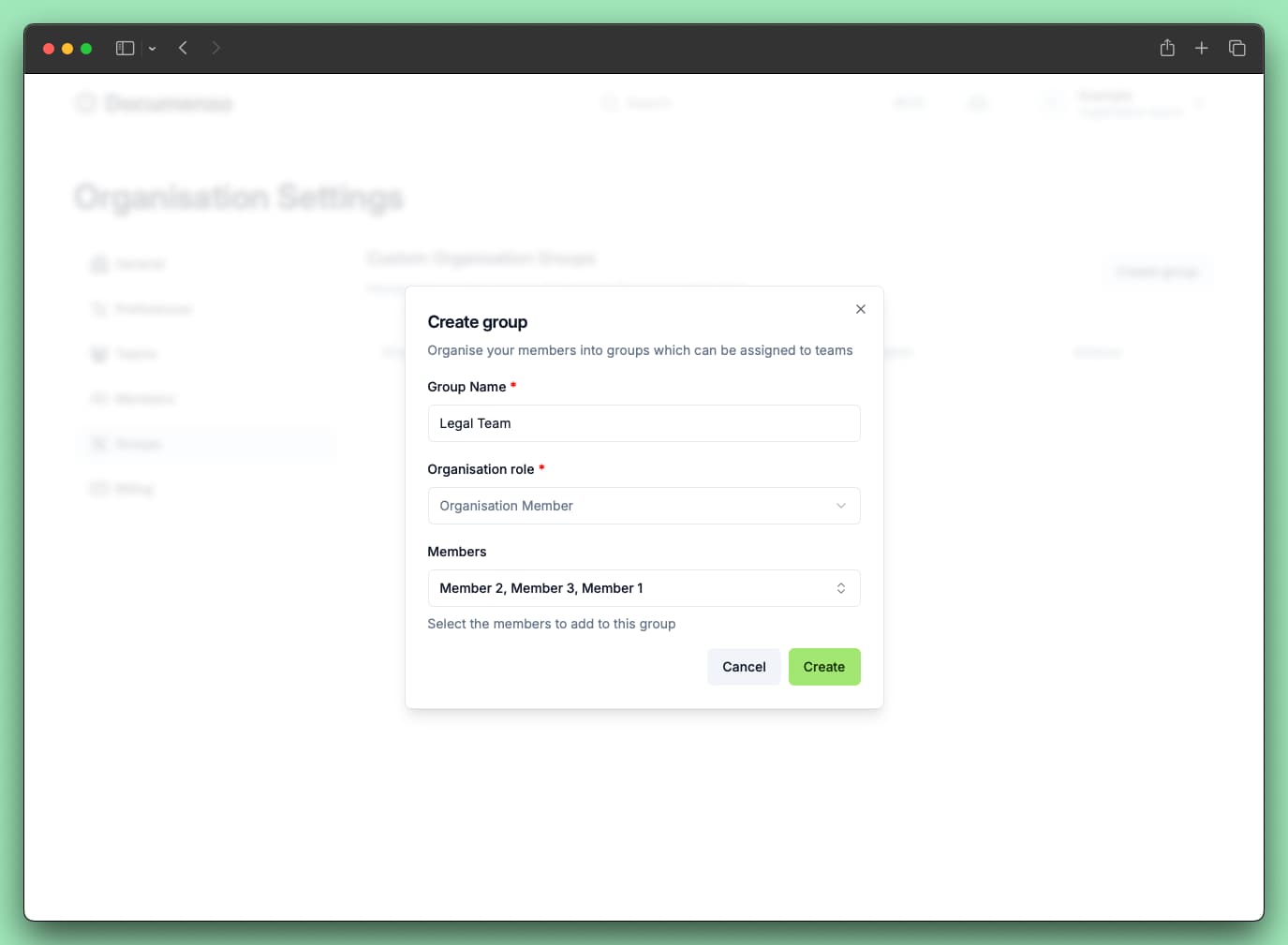
Create a Group
Name the group
Give it a descriptive name (e.g. "Legal Compliance").
Set organisation role
Define the default role for group members.
Add members
Include organisation members in the group.
Assign a Group to a Team
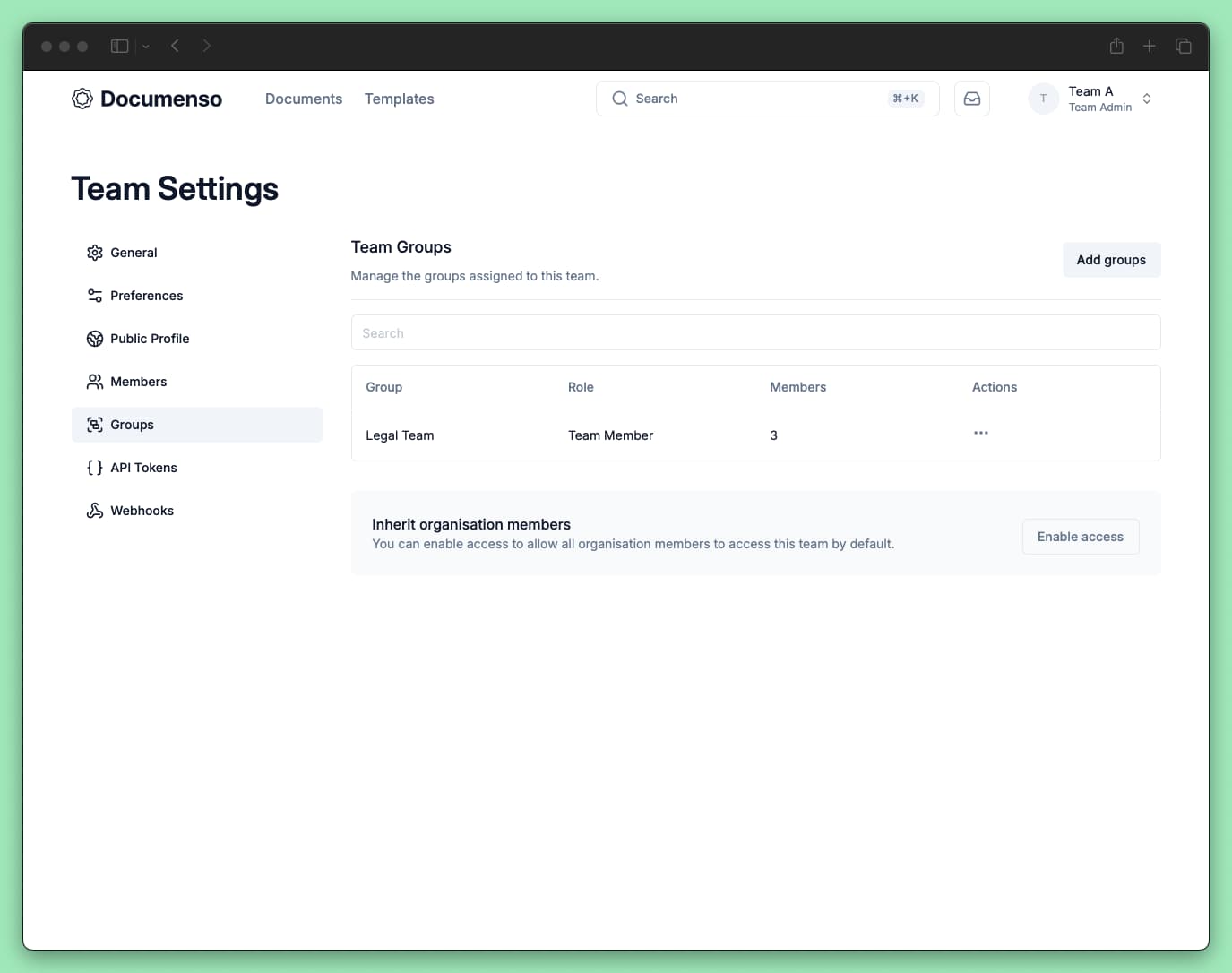
Open team settings
Go to the team and click Settings > Groups tab.
Add the group
Click Add groups and select the group. Members are automatically added to the team.
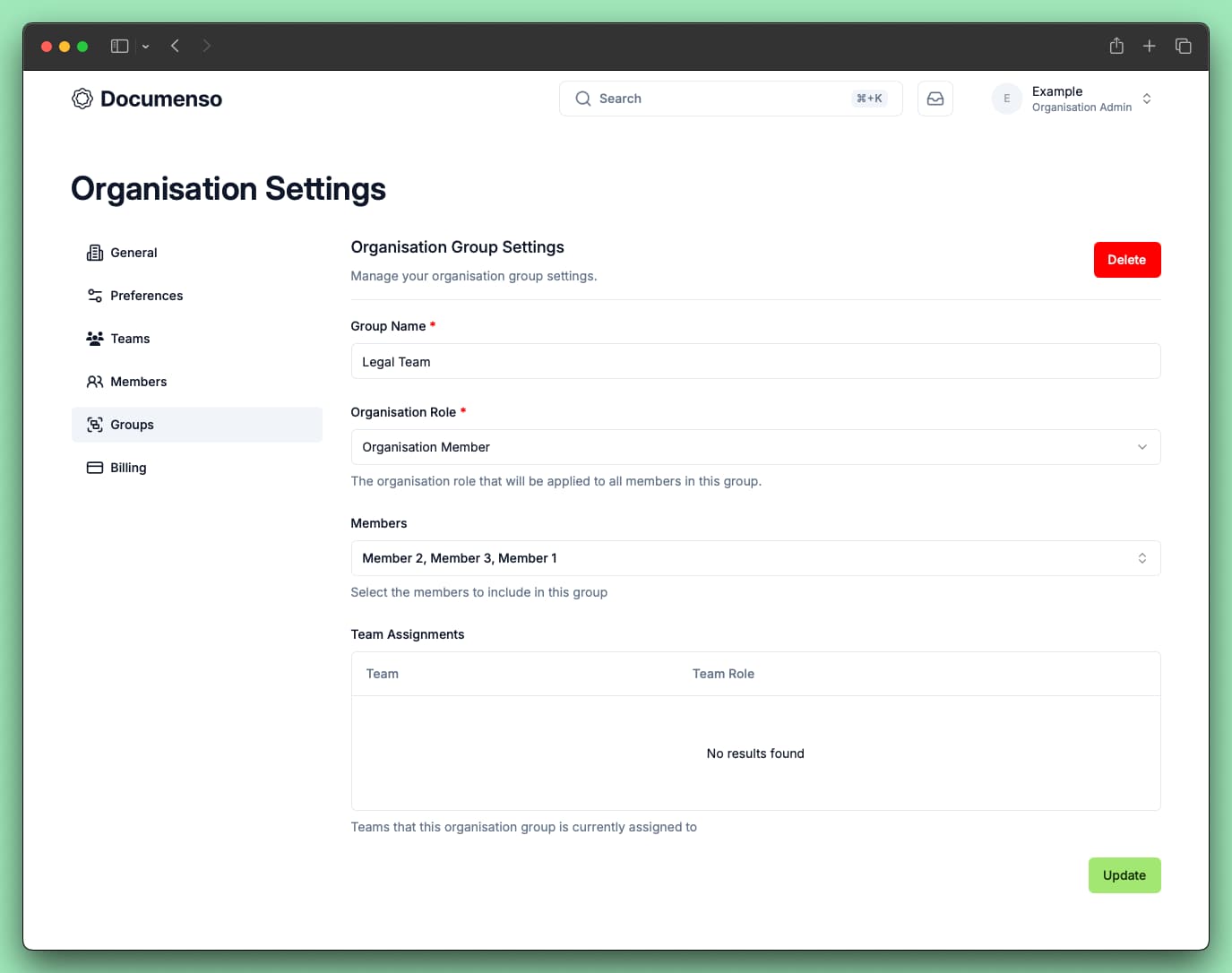
Manage Groups
Click Manage on a group to view which teams it's assigned to and edit its settings.
What's Next?
See Also
- Team Members - Manage individual team members and roles
- Create a Team - Set up a new team in your organisation
- Document Preferences - Manage default document settings