Create a Team
Set up a new team to collaborate on documents, templates, and settings within your organisation.
Prerequisites
- An organisation.
- Teams exist within an organisations.
- Organisation Admin or Manager role to create teams.
Limitations
| Field | Constraint |
|---|---|
| Team name | 3-30 characters |
| Team URL | 3-30 characters; lowercase letters, numbers, dashes, and underscores only. Cannot start or end with dashes or underscores. No consecutive dashes or underscores. |
| Teams | Maximum number depends on your plan |
Create a Team
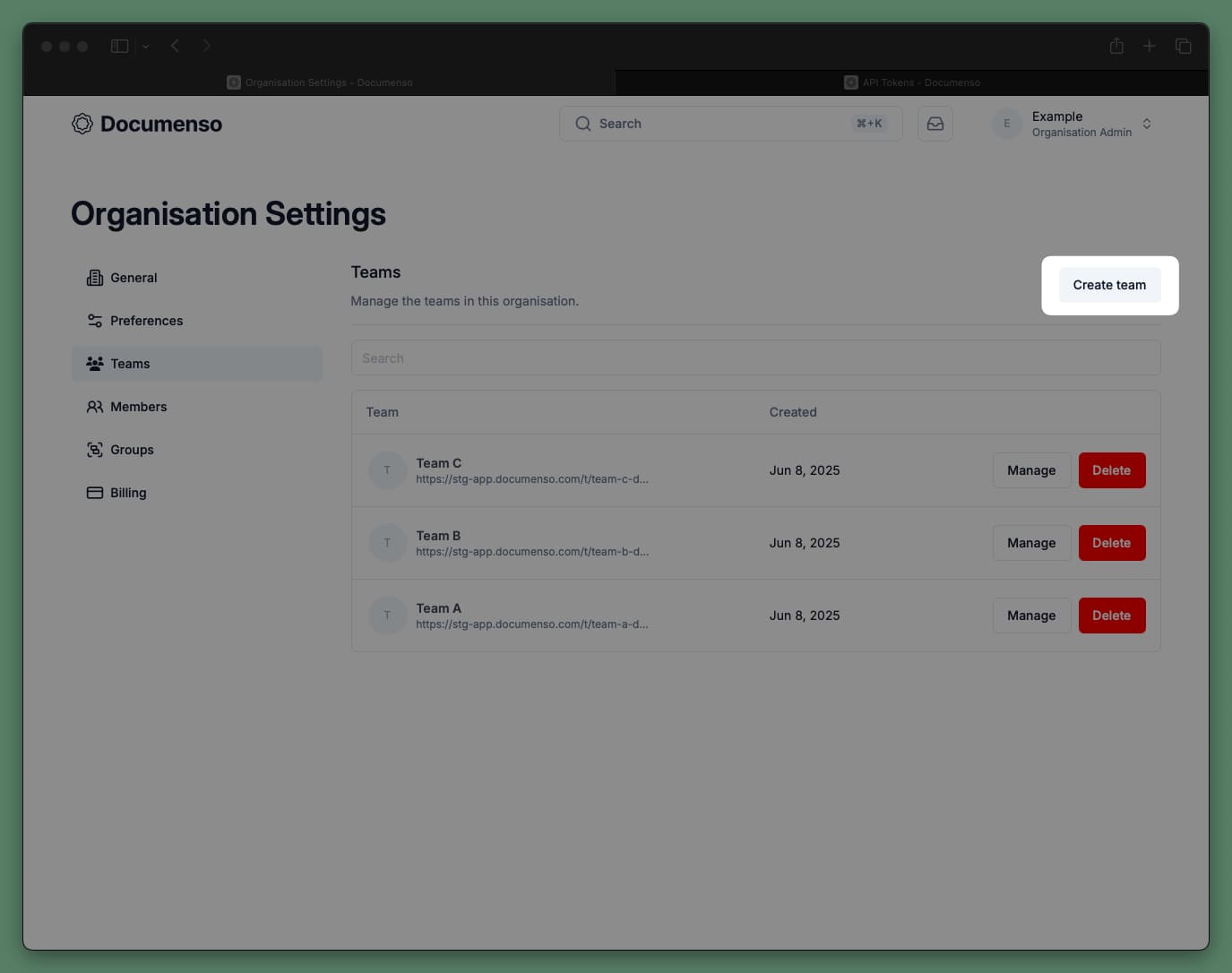
Enter team details
Fill in the required information:
- Team Name: A display name for your team (3-30 characters)
- Team URL: A unique identifier used in URLs like
app.documenso.com/t/your-team-url
The Team URL is automatically generated from your team name, but you can customize it.
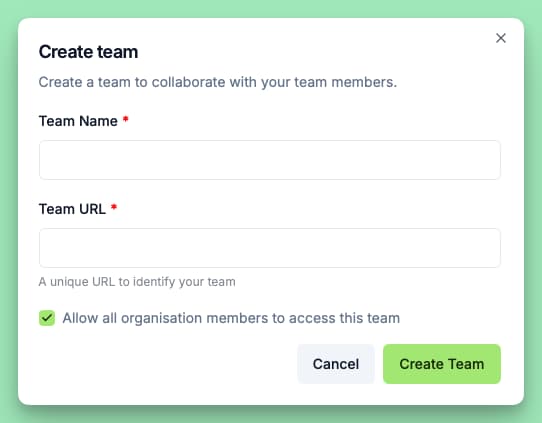
Configure member access
Choose whether to allow all organisation members to access this team:
All current and future organisation members can access team documents.
Create the team
Click Create Team to finish. You'll be taken to your new team's workspace.
Team Settings
After creating a team, you can configure additional settings from Team Settings:
| Setting | Description |
|---|---|
| Team Name | Update the display name. |
| Team URL | Change the URL identifier (this changes all team links). |
| Team Avatar | Upload an image to identify your team. |
| Team Email | Add an email address for your team (see Team Email below). |
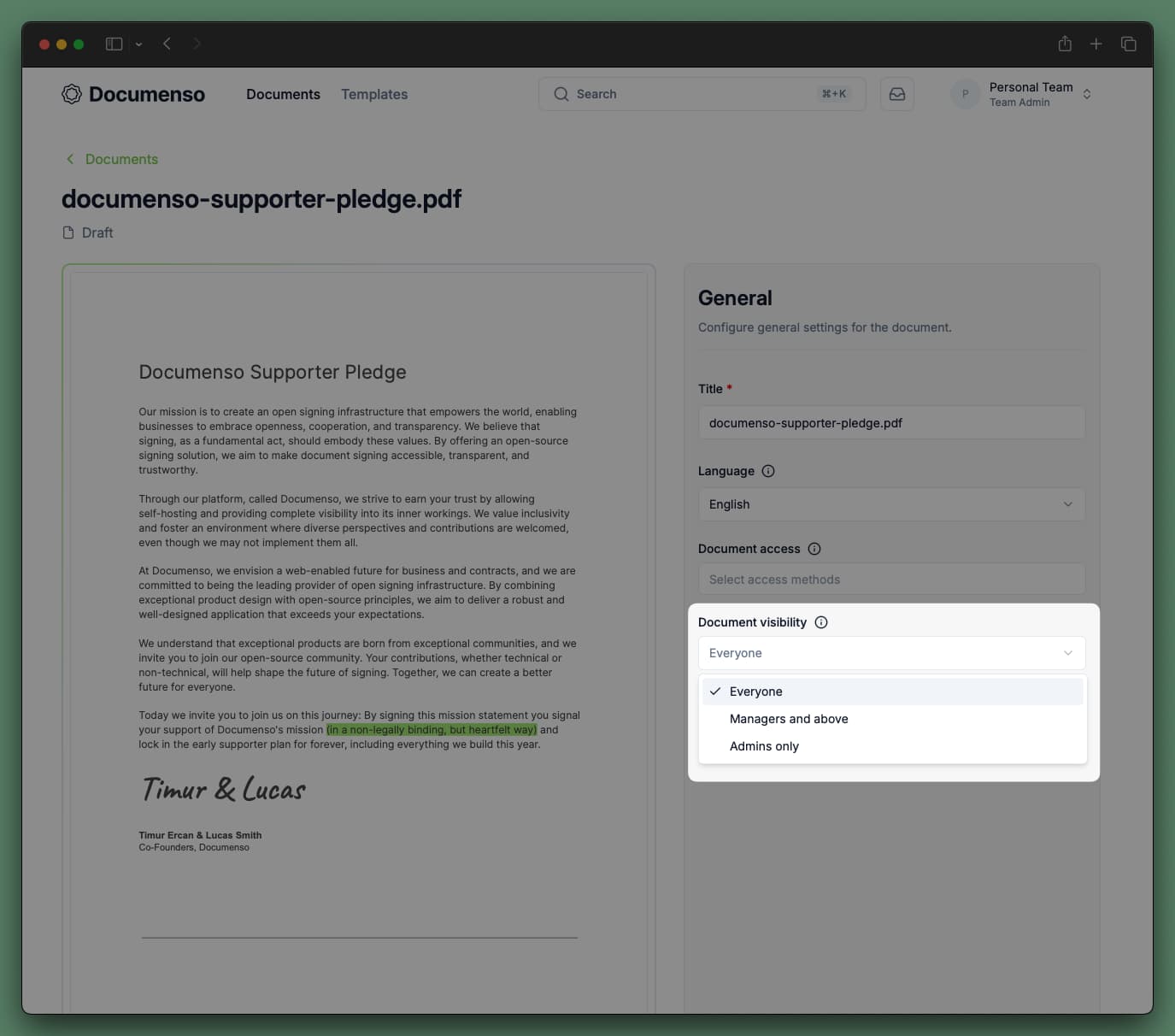
Team Email
Adding a team email address enables several capabilities:
| Capability | Description |
|---|---|
| Team Inbox | View signing requests sent to this email address. |
| Send on behalf | Documents sent from the team appear to come from the team email rather than your personal email. |
| Track documents | See documents sent from this email in the team's document list. |
| Consistent branding | Recipients see the team identity rather than individual sender details. |
To configure a team email:
Go to Team Settings > General.
Enter the email address in the Team Email field.
Click Update to save.
The team email is used as the sender identity for documents sent from the team. Recipients will see this email address in signing notifications.
See Also
- Manage Members - Add team members and configure their roles
- Create Templates - Set up reusable document templates for your team
- Single Sign-On - Configure SSO for your organisation