Create Templates
Build reusable document templates for contracts, agreements, and other documents you send frequently.
Overview
Templates are reusable document configurations that save you from recreating the same setup every time you send a similar document. A template stores your PDF, recipient roles, field placements, and settings so you can generate new documents with a few clicks.
Use templates when you:
- Send the same type of document regularly (contracts, NDAs, onboarding forms)
- Need consistent field placement across documents
- Want to pre-configure recipients and signing workflows
- Plan to use direct links for public signing
Create a Template from Scratch
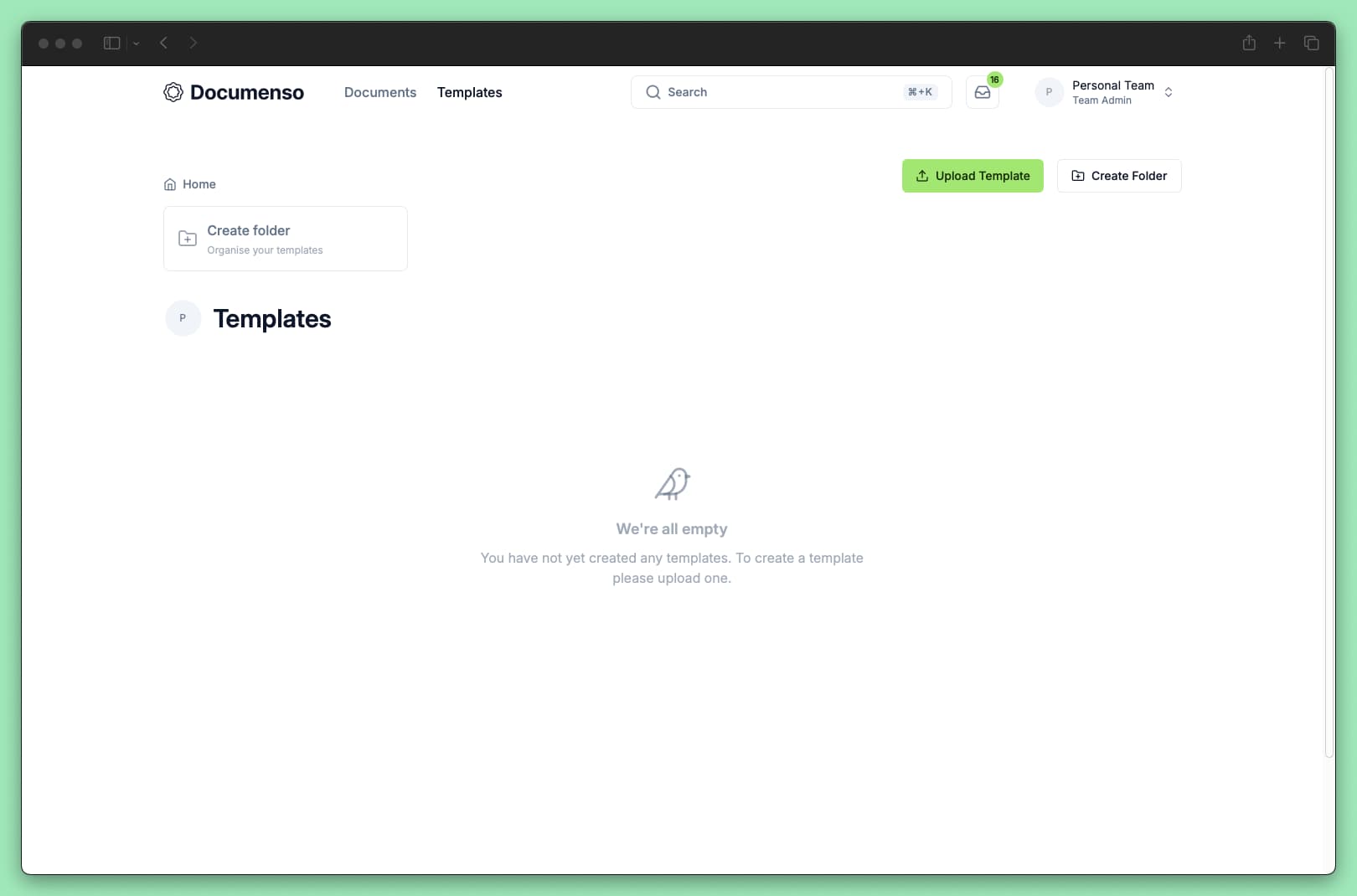
Upload your document
Select one or more PDF files to upload. If you select multiple files, they're combined into a single template.
After uploading, you'll enter the template editor where you can configure recipients, fields, and settings.
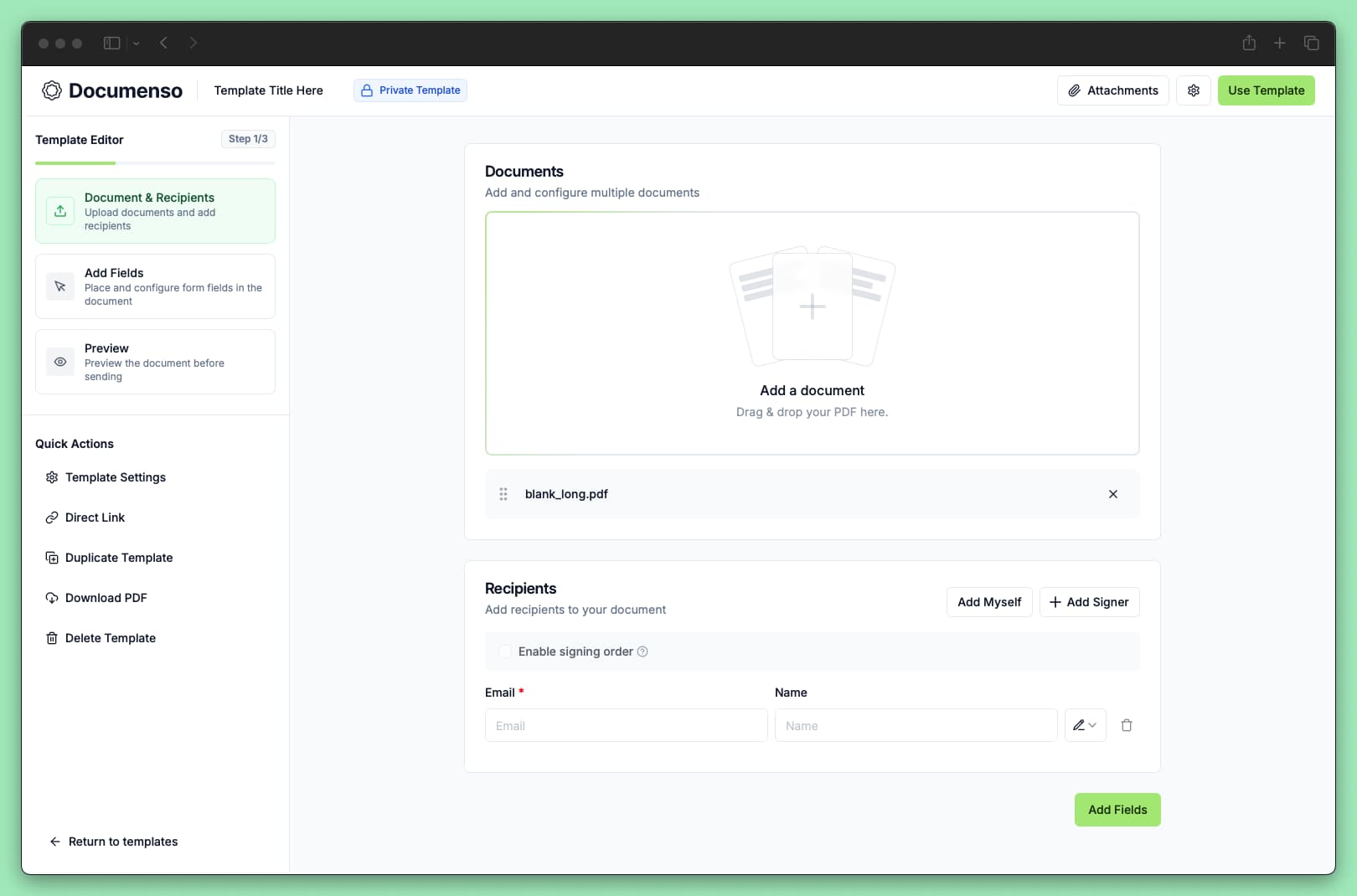
Add recipients
Add the people who will interact with documents created from this template. For each recipient, specify:
- Email: Use a real email if the recipient is always the same person, or a placeholder email (like
client@placeholder.com) if it changes each time - Name: Optional, but helps identify recipients
- Role: What the recipient needs to do (Signer, Approver, Viewer, CC)
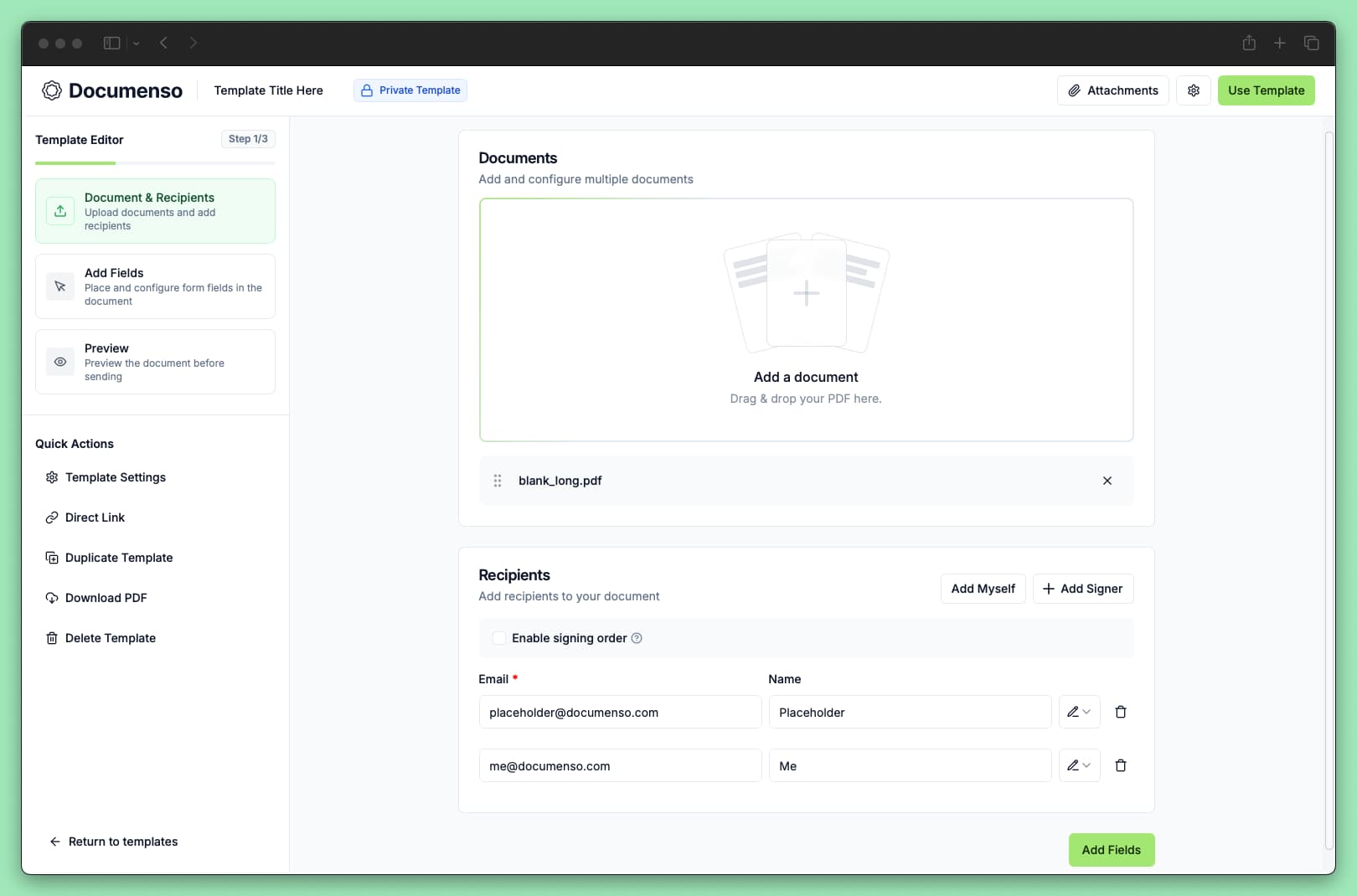
Add fields
Drag fields from the field palette onto your document and assign them to recipients. At minimum, each signer needs one signature field.
See Add Fields for detailed guidance on field types and configuration.
Save the template
Click Save Template to finish. Your template appears in the Templates list, ready to use.
Placeholder Recipients
Templates often need placeholder recipients - people whose actual email addresses you won't know until you use the template. For example, a sales contract template might have:
- You (your real email) - Always signs as the company representative
- Client (placeholder) - Different person for each contract
Setting up placeholders
Use any email format that's clearly a placeholder:
client@placeholder.comsigner1@example.comrecipient@documenso.com
When you use the template, you'll replace these placeholders with actual recipient emails.
When to use real emails
Use real email addresses when the recipient is always the same person:
- Your own email for documents you always sign
- A team member who reviews all contracts
- A compliance officer who needs to approve every agreement
Template Settings
Click the settings icon in the template editor to configure these options:
Title
The template name shown in your Templates list. Use a descriptive name like "Standard NDA" or "Freelance Contract - Hourly" so you can find it quickly.
The title also becomes the default document name when you create documents from the template. Recipients see this name in their signing invitation.
External ID
An optional identifier for integrating with external systems. Use this to:
- Match templates to records in your CRM or contract management system
- Track which template generated a document in your analytics
- Reference templates in API calls
The external ID has no effect on document signing - it's purely for your reference.
Global settings
Additional options that apply to all documents created from this template:
| Setting | Description |
|---|---|
| Date format | How dates appear in Date fields (e.g., MM/DD/YYYY or DD/MM/YYYY) |
| Time zone | Time zone used for date calculations |
| Redirect URL | Where to send recipients after they finish signing |
| Language | Language for the signing interface and emails |
Template Visibility
All templates are created in a team context. By default, templates are Private and only visible to members of the owning team.
If your organisation has multiple teams, you can set a template's type to Organisation to share it across all teams. See Organisation Templates for details.
Edit a Template
To modify an existing template:
Go to Templates and find the template you want to edit.
Click on the template to open it in the editor.
Make your changes to recipients, fields, or settings.
Click Save Template.
Changes only affect future documents created from the template. Documents already created from this template are not updated.
Duplicate a Template
To create a copy of an existing template:
Go to Templates and find the template.
Click the three-dot menu and select Duplicate.
The copy opens in the editor; make any changes and save with a new name.
This is useful when you need a variation of an existing template without modifying the original.
Delete a Template
To delete a template:
Go to Templates and find the template.
Click the three-dot menu and select Delete.
Confirm the deletion.
Deleting a template is permanent. Documents already created from the template are not affected, but you won't be able to create new documents from it.
See Also
- Use a Template - Create documents from your template
- Direct Links - Share a signing link without knowing recipient emails
- API: Templates - Create and use templates programmatically