Direct Links
Share a signing URL without knowing recipient emails in advance. Recipients can open the link, enter their information, and sign the document.
Overview
Use direct links when you:
- Need to collect signatures from people whose emails you don't have
- Want to embed signing into your website or application
- Are collecting signatures from a public audience (forms, petitions, agreements)
Limitations
- Direct links only work with templates, not individual documents
- You cannot specify recipient details in advance - they enter their own information
- Each direct link is tied to a single recipient role in the template
- The template owner receives a notification for each completed signature
Create a Direct Link
Direct links are created from templates. You'll need a template before you can generate a direct link.
Go to your template
Navigate to Templates in the sidebar and find the template you want to share.
Enable direct link
Click the three-dot menu on the template row and select Direct link.
In the modal that appears, click Enable direct link to proceed.
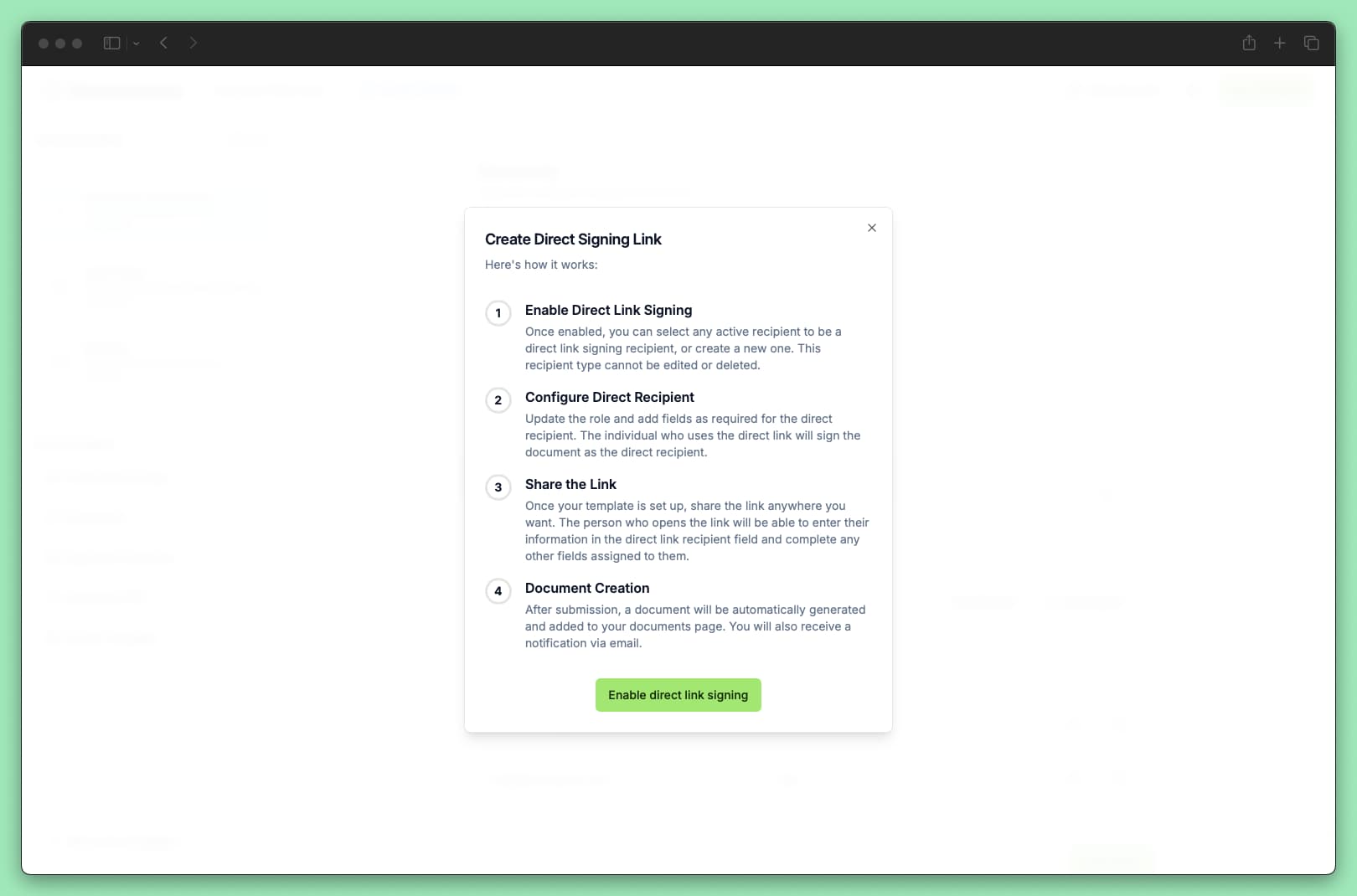
Select the recipient
Choose which recipient in your template will use the direct link:
- Select an existing recipient: Pick from recipients already defined in your template
- Create one automatically: Documenso creates a new "Direct Link Recipient" for you
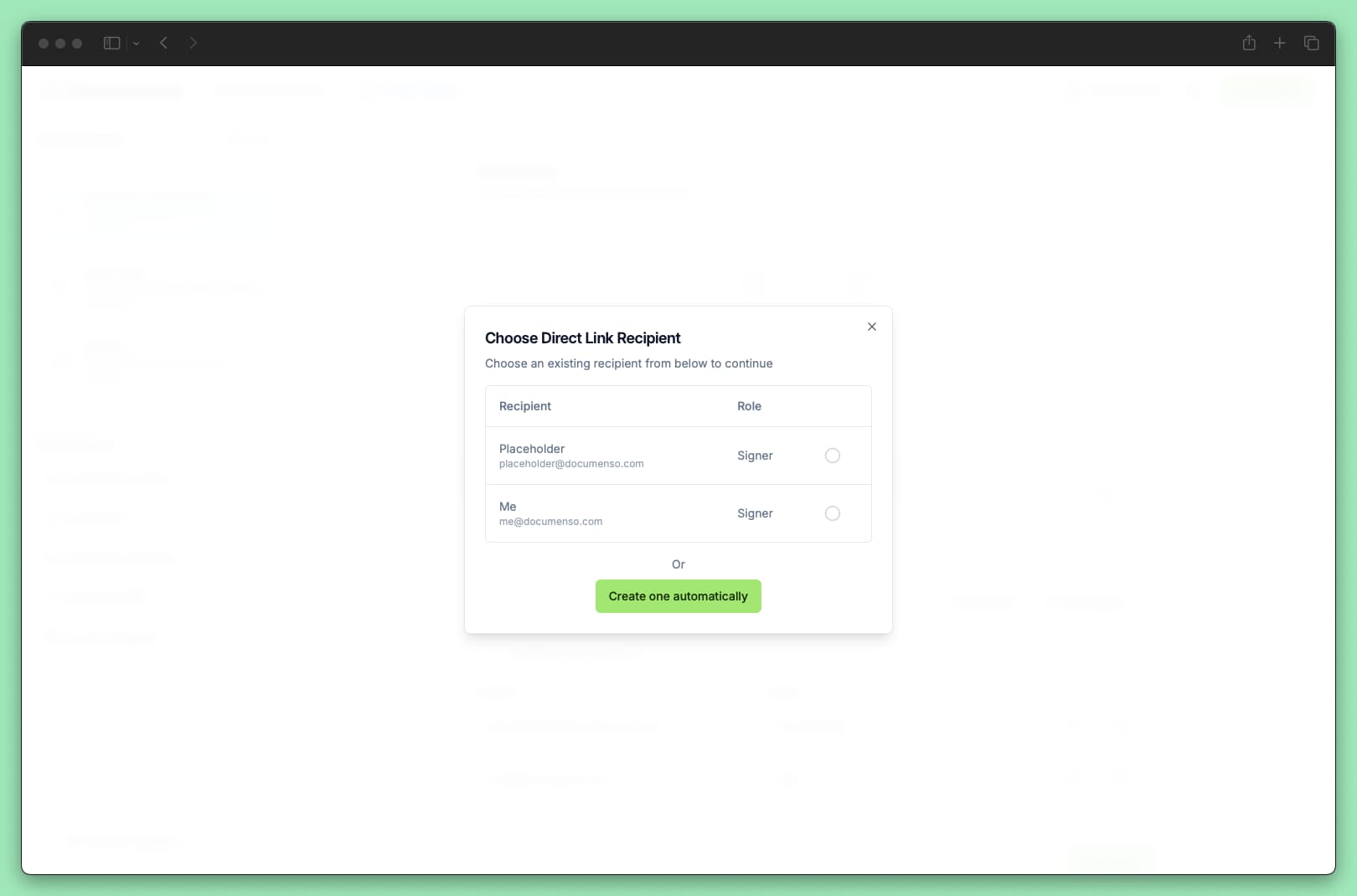
The person who opens the direct link will fill in this recipient's fields.
The direct link recipient cannot be edited or deleted while the direct link is active. Disable the direct link first if you need to modify this recipient.
Copy the link
After selecting a recipient, you'll see your direct link:
https://app.documenso.com/d/<unique-token>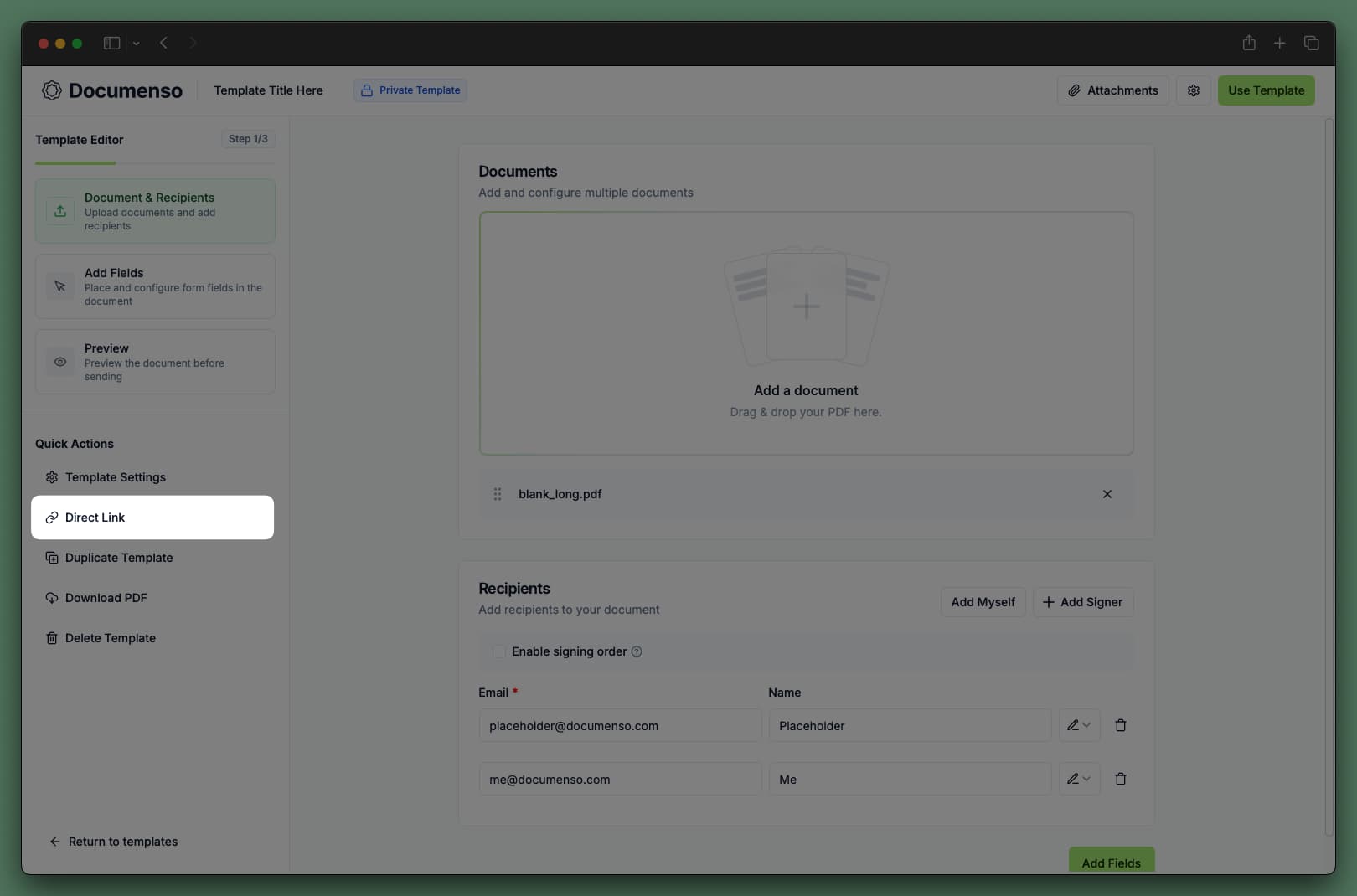
Copy this link and share it however you need - email, website, QR code, or social media.
What Recipients See
When someone opens your direct link:
- They see the document with all fields assigned to the direct link recipient
- They enter their name and email address
- They complete any required fields (signature, text, checkboxes, etc.)
- After signing, they receive a copy of the completed document via email
If the recipient has a Documenso account with the email they entered, the document also appears in their Documents dashboard.
Manage Direct Links
Disable a direct link
To temporarily stop accepting signatures:
Go to Templates and find your template.
Click the three-dot menu and select Direct link.
Toggle the direct link off.
The link URL remains the same. You can re-enable it later without generating a new link.
Delete a direct link
To permanently remove a direct link:
Disable the direct link first (see above).
Edit or delete the direct link recipient as needed.
If you enable direct links again later, you'll get a new URL.
Add Direct Links to Your Profile
You can showcase templates with direct links on your public Documenso profile:
Go to Settings > Public Profile.
Enable your public profile if you haven't already.
Add templates with active direct links to your profile.
Visitors to your profile page can then sign those documents directly.
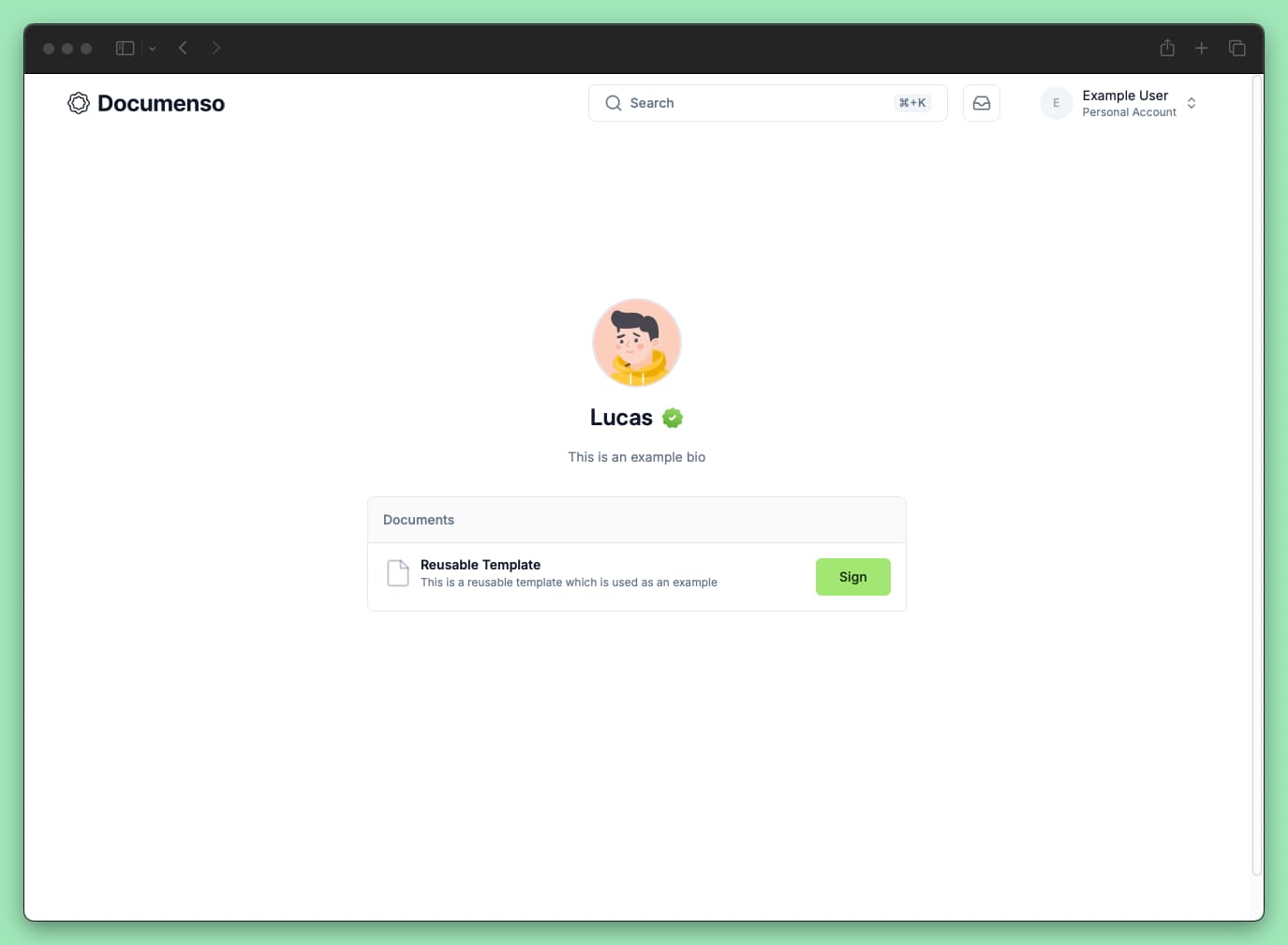
This is useful for freelancers, consultants, or businesses who want clients to easily access common agreements.
Use Cases
Public forms and agreements
Create a template for documents that anyone can sign:
- Liability waivers
- NDAs for event attendees
- Consent forms
- Petition signatures
Share the direct link on your website, in emails, or via QR codes at physical locations.
Embedded signing
Add signing capabilities to your website or app by embedding the direct link:
<a href="https://app.documenso.com/d/your-token">Sign our agreement</a>Or redirect users to the signing page after they complete another action in your application.
Self-service contracts
Let customers or partners initiate contracts themselves:
Create a template with your standard terms.
Share the direct link with customers or partners.
Recipients sign and receive their copy automatically.
You get notified and the signed document appears in your dashboard.
Direct Links vs Standard Document Flow
| Feature | Standard Flow | Direct Links |
|---|---|---|
| Know recipient email upfront | Required | Not required |
| Send email invitation | Yes | No (you share the link) |
| Multiple recipients | All specified | One recipient via link, others specified |
| Recipient enters their info | No | Yes |
| Works with | Documents or Templates | Templates only |
See Also
- Create a Template - Set up a template to use with direct links
- API: Templates - Generate documents from templates programmatically