Send Documents
Send your document for signing, customize email notifications, and manage post-send actions like resending or voiding.
Prerequisites
Before sending, ensure your document has:
- At least one recipient added
- Signature fields assigned to each signer
- Required email addresses for recipients with authentication enabled
Send a Document
Click Send Document in the document editor.
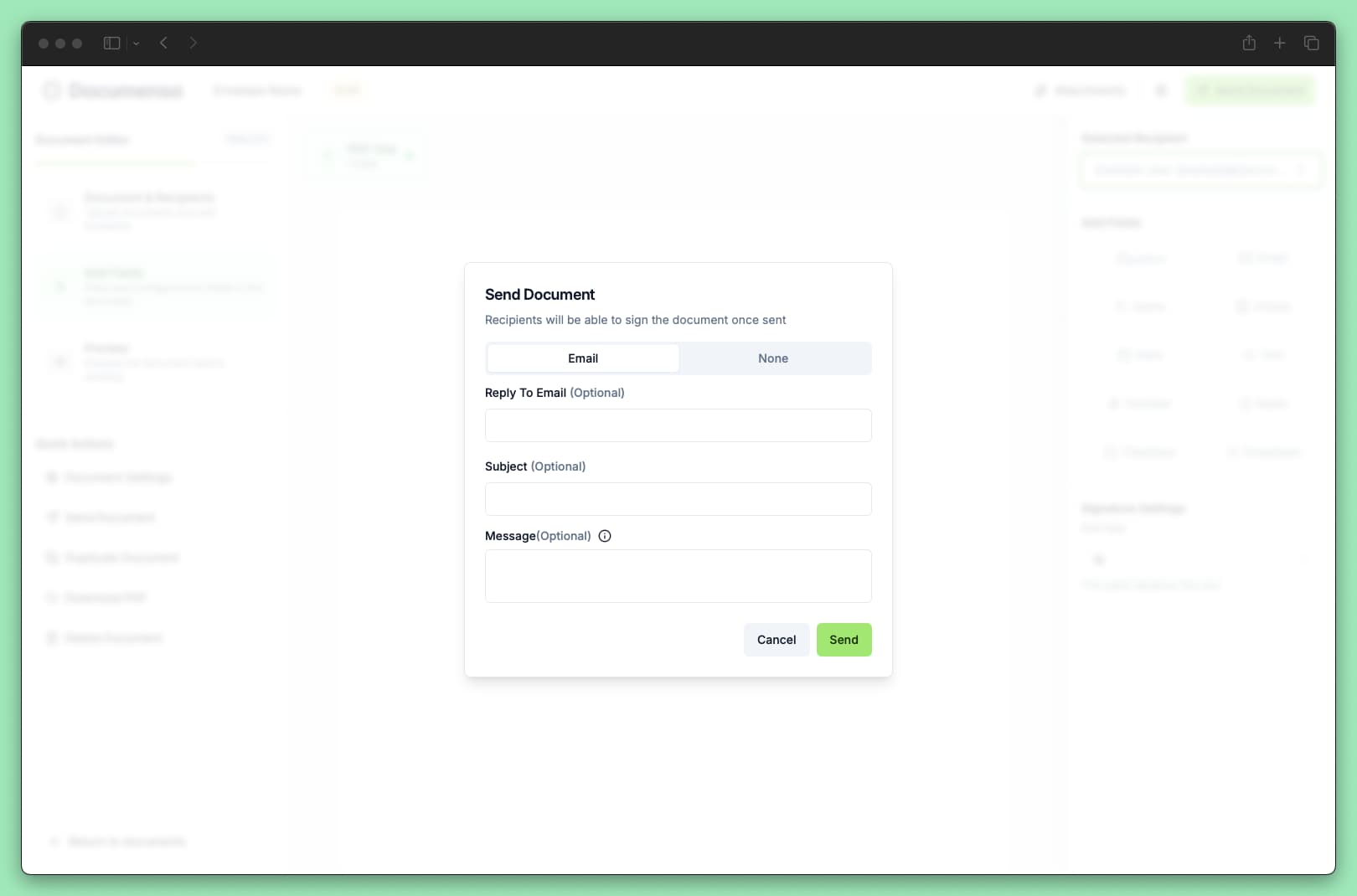
Choose the distribution method: Email (recipients get signing links by email) or None (you get links to share manually).
If using email, configure subject, message, and reply-to as needed.
Click Send or Generate Links to send the document.
Once sent, the document status changes from Draft to Pending.
Email Customization
When sending via email, you can customize the email that recipients receive. There are 2 ways to customize the email.
You can customize it before sending the document, after pressing the Send button.
Or you can customize it before sending the document, by clicking on the Document Settings button in the editor sidebar. On this page, you can also customize what emails are sent to the recipients.
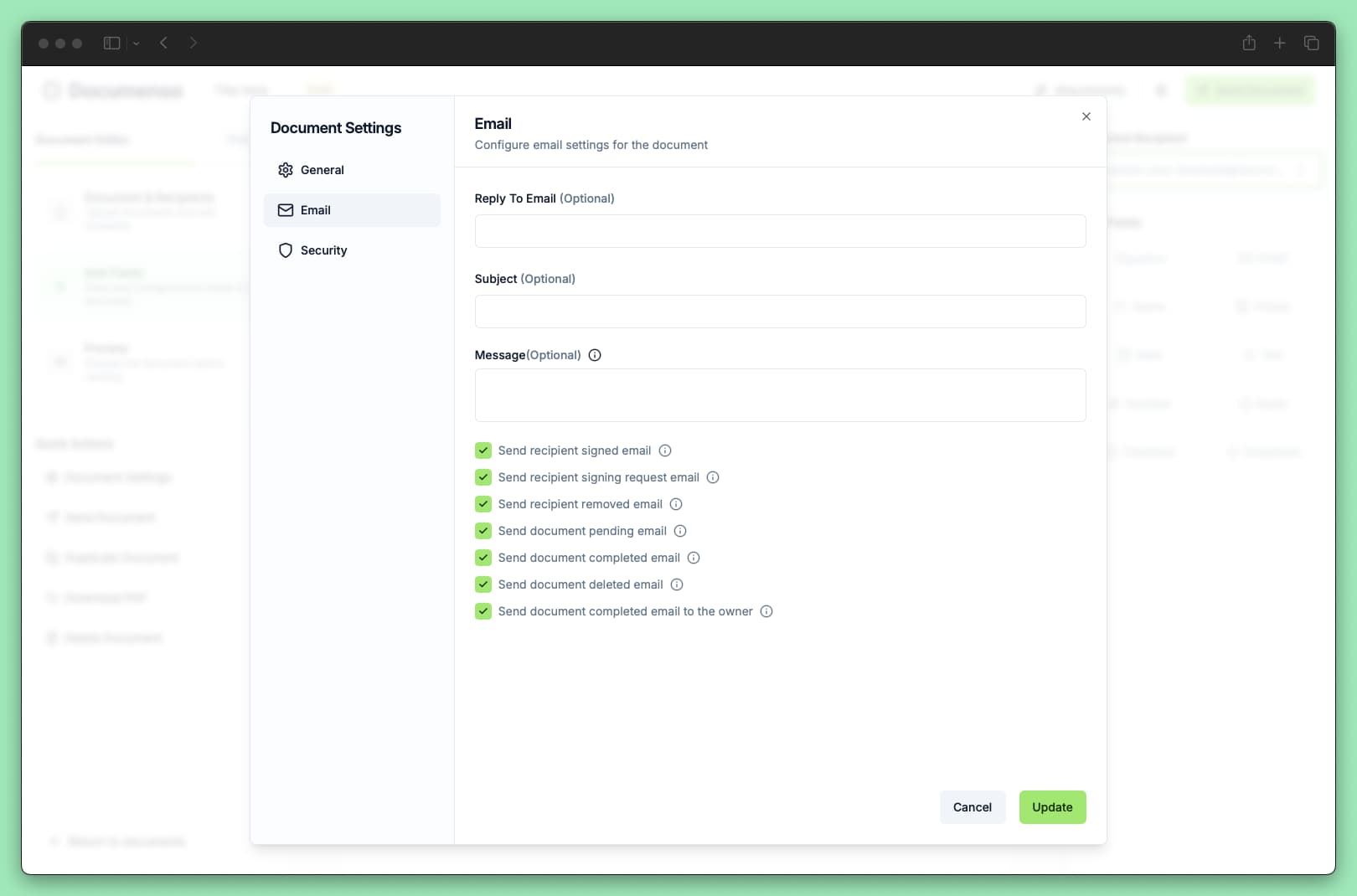
Reply-to email (optional)
Set a reply-to address so recipient replies go to a specific email instead of the default.
Subject (optional)
Customize the email subject line. If left blank, recipients see a default subject based on their role:
For team documents, the subject includes the team name.
Message (optional)
Add a custom message that appears in the email body. You can use these variables:
{signer.name}- Recipient's name{signer.email}- Recipient's email{document.name}- Document title
If left blank, a default message is generated based on the recipient's role and whether the sender is part of an organisation.
Enterprise organisations can configure custom sender email addresses from their organisation settings.
What Recipients Receive
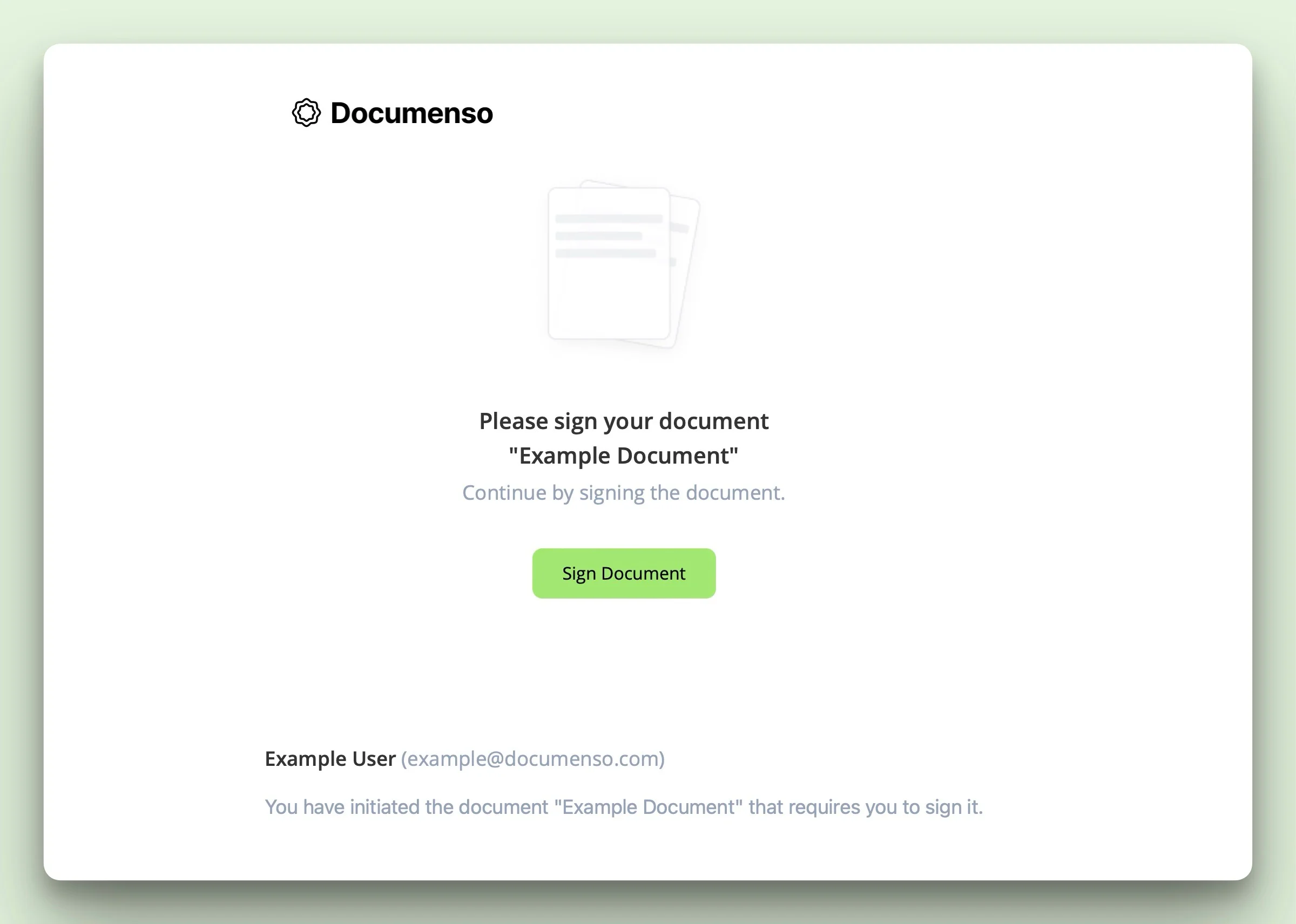
Each recipient receives an email containing:
- The document title
- Your name and email (or team name for organisation accounts)
- Your custom message (or a default message)
- A button to access the document
The email includes a unique signing link specific to that recipient. This link expires once the document is completed or deleted.
Document Status After Sending
After sending, your document moves through these statuses:
| Status | Meaning |
|---|---|
| Pending | Waiting for recipients to complete their actions |
| Completed | All recipients have completed their actions |
| Rejected | A recipient rejected the document |
You can track progress from the document detail page, which shows each recipient's signing status.
Resend to Recipients
If a recipient hasn't acted on the document, you can send them a reminder:
Open the document from your Documents page.
Click the actions menu (three dots) and select Resend.
Check the recipients you want to remind, then click Send reminder.
Reminders are only available for:
- Documents with Pending status
- Recipients who haven't yet signed
The reminder email includes "Reminder:" prefixed to the subject line and uses the same message from the original send.
Delete a Pending Document
To stop a signing process and remove a document:
Open the document from your Documents page.
Click the actions menu (three dots) and select Delete.
Type "delete" to confirm, then click Delete.
Deleting a pending document is irreversible. The document is permanently deleted, all signatures are voided, and recipients receive a cancellation email.
Delete Behavior by Status
| Status | What happens |
|---|---|
| Draft | Permanently deleted, no notifications sent |
| Pending | Permanently deleted, recipients notified of cancellation |
| Completed | Hidden from your account, recipients keep their copies |
Document Settings
Access document settings from the Document Settings button in the quick actions sidebar of the editor.
General Settings
| Setting | Description |
|---|---|
| Language | The language used for emails sent to recipients |
| Allowed Signature Types | Which signature methods recipients can use (draw, type, upload) |
| Date Format | The date format used for date fields |
| Time Zone | The time zone used for date fields |
| External ID | A custom identifier for integrating with your external systems |
| Redirect URL | Where signers are redirected after completing their actions |
| Document Distribution Method | Email (sends notifications) or None (generates signing links) |
Security Settings
Control authentication requirements for accessing and signing the document.
Document-level access control:
| Option | Description |
|---|---|
| Require account | The recipient must have an account and be signed in to view the document |
| Require 2FA | The recipient must use two-factor authentication |
| None | The document can be accessed directly via the signing link |
Recipient Authentication allows you to require additional verification when a recipient signs a signature field:
| Option | Description |
|---|---|
| Require passkey | The recipient must have a passkey configured |
| Require 2FA | The recipient must have 2FA enabled |
| None | No additional authentication |
You can set authentication at the document level and override it per recipient.
Recipient Authentication is an Enterprise feature. See the Enterprise Edition for details.
Attachments
Configure document attachments from the right-hand side of the editor header. Attachments are included with the signed document when it is completed.
Distribution Without Email
If you choose None as the distribution method:
The document is sent without notifying recipients.
You're redirected to the document page where signing links are displayed.
Copy the links and share them through your preferred channel (SMS, messaging app, etc.).
This is useful when you want to:
- Send links via SMS or messaging apps
- Embed signing links in your own application
- Control the notification timing yourself
See Also
- Create Templates - Save time on documents you send repeatedly
- Direct Links - Let recipients sign without invitations