Add Recipients
Add signers, approvers, viewers, and CC recipients to your document. Each role determines how the recipient interacts with the document.
Add a Recipient
Open the document editor
You can access the document editor by clicking on a document in your Documents dashboard.
If you're uploading a document, you'll be redirected to the document editor after the upload is complete automatically.
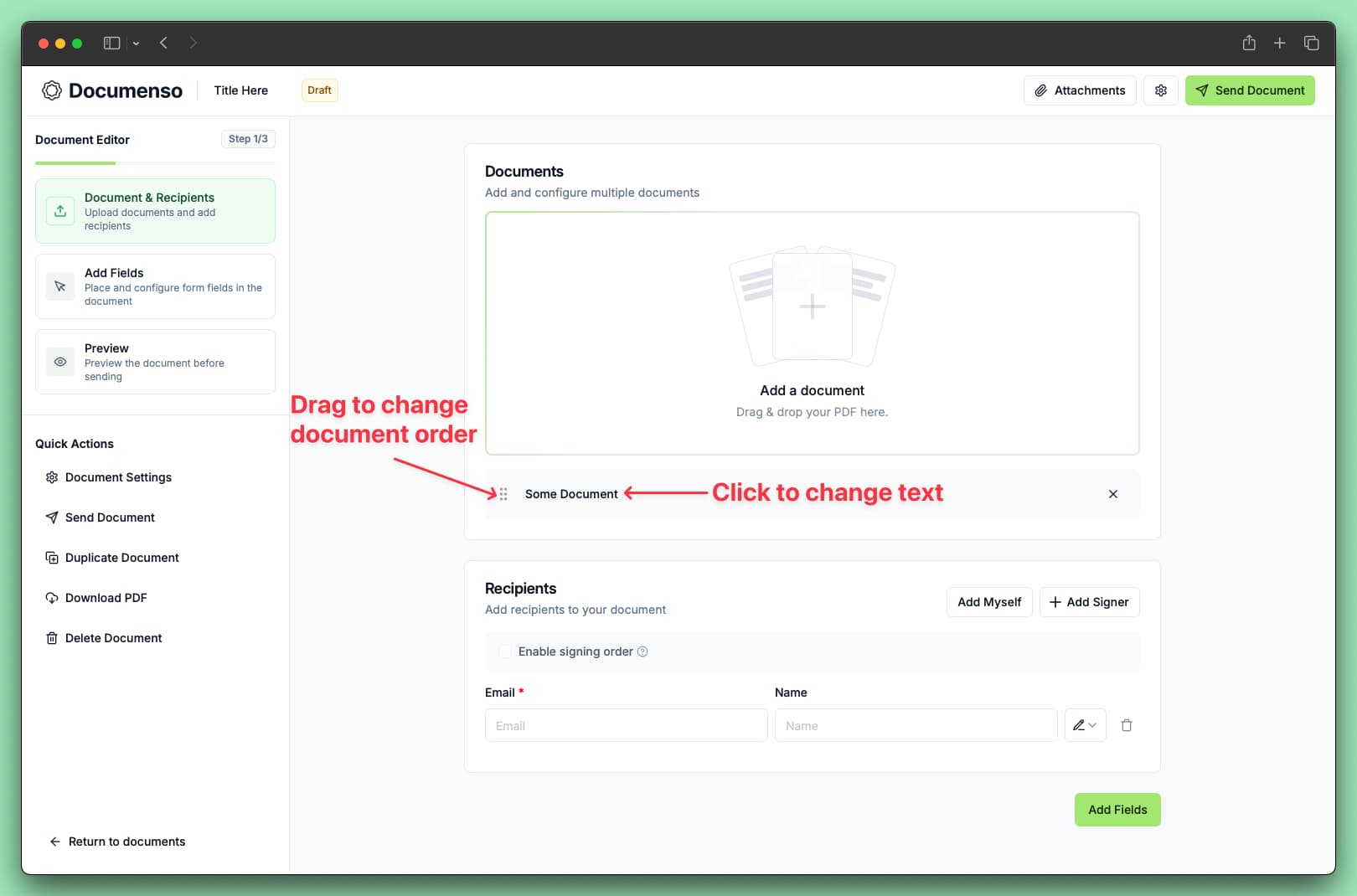
Enter recipient details
Fill in the following information:
- Email: The recipient's email address (required)
- Name: The recipient's name (optional, but recommended for clarity)
- Role: What the recipient needs to do (see Recipient Roles)
Recipient Information
Email Address
The email address is where the recipient receives their signing invitation.
Make sure it's correct - once you send the document, the invitation goes to this address and cannot be changed.
Name
Adding a name helps recipients identify themselves when they receive the document. The name appears in:
- The signing invitation email
- The document activity log
- The completed document's signature certificate
If you leave the name blank, the email address is displayed instead.
Assigning Roles
Each recipient needs a role that determines what actions they can take:
| Role | What they do |
|---|---|
| Signer | Must sign the document |
| Approver | Must approve the document (signing is optional) |
| Viewer | Must confirm they viewed the document |
| Assistant | Pre-fills fields for other recipients |
| CC | Receives a copy after the document is completed |
For detailed information about each role, see Recipient Roles.
The Assistant role is only available when sequential signing is enabled.
Multiple Recipients
You can add as many recipients as you need. Click + Add Signer for each additional person.
Common scenarios:
Signing Order
By default, all recipients receive the document at the same time and can complete their actions in any order (parallel signing). You can change this to require recipients to act in a specific sequence.
Parallel Signing (Default)
All recipients receive the document simultaneously. The document is completed when everyone finishes their required actions. Use this when:
- The order doesn't matter
- You want the fastest completion time
- Recipients are independent of each other
Sequential Signing
Recipients receive the document one at a time, in the order you specify. Each person must complete their action before the next person is notified.
To enable sequential signing:
Enable signing order
Toggle on Enable signing order in the Recipients section.
Set the order for each recipient
Assign an order number to each recipient (1, 2, 3, etc.).
Use the same number for parallel steps
Recipients with the same order number act simultaneously at that step.
Sequential signing is required to use the Assistant role. Assistants must act before the signers whose fields they pre-fill.
Example workflow:
| Order | Recipient | Role |
|---|---|---|
| 1 | Admin Assistant | Assistant |
| 2 | Department Head | Approver |
| 3 | Contract Party A | Signer |
| 3 | Contract Party B | Signer |
| - | Legal Team | CC |
In this example:
- The assistant pre-fills information
- The department head reviews and approves
- Both contract parties sign at the same time
- Legal receives a copy after completion
Editing Recipients
You can modify recipient details anytime before sending the document:
- Change email or name: Click on the field and type the new value
- Change role: Select a different role from the dropdown
- Change signing order: Adjust the order number (if sequential signing is enabled)
After sending a document, you cannot change recipients. If you need different recipients, you'll need to create a new document.
Removing Recipients
To remove a recipient, click the delete icon (trash) next to their row. This also removes any fields assigned to that recipient.
You cannot remove recipients after the document has been sent.
See Also
- Add Fields - Place signature, text, date, and other fields on your document
- Send Documents - Send for signing and monitor progress
- Recipient Roles - Detailed information about each role