Add Fields
Place signature, text, date, and other fields on your document.
Overview
Fields are placeholders that recipients fill in when signing your document. You drag fields from the palette onto your document, position them where you want information collected, and assign them to specific recipients.
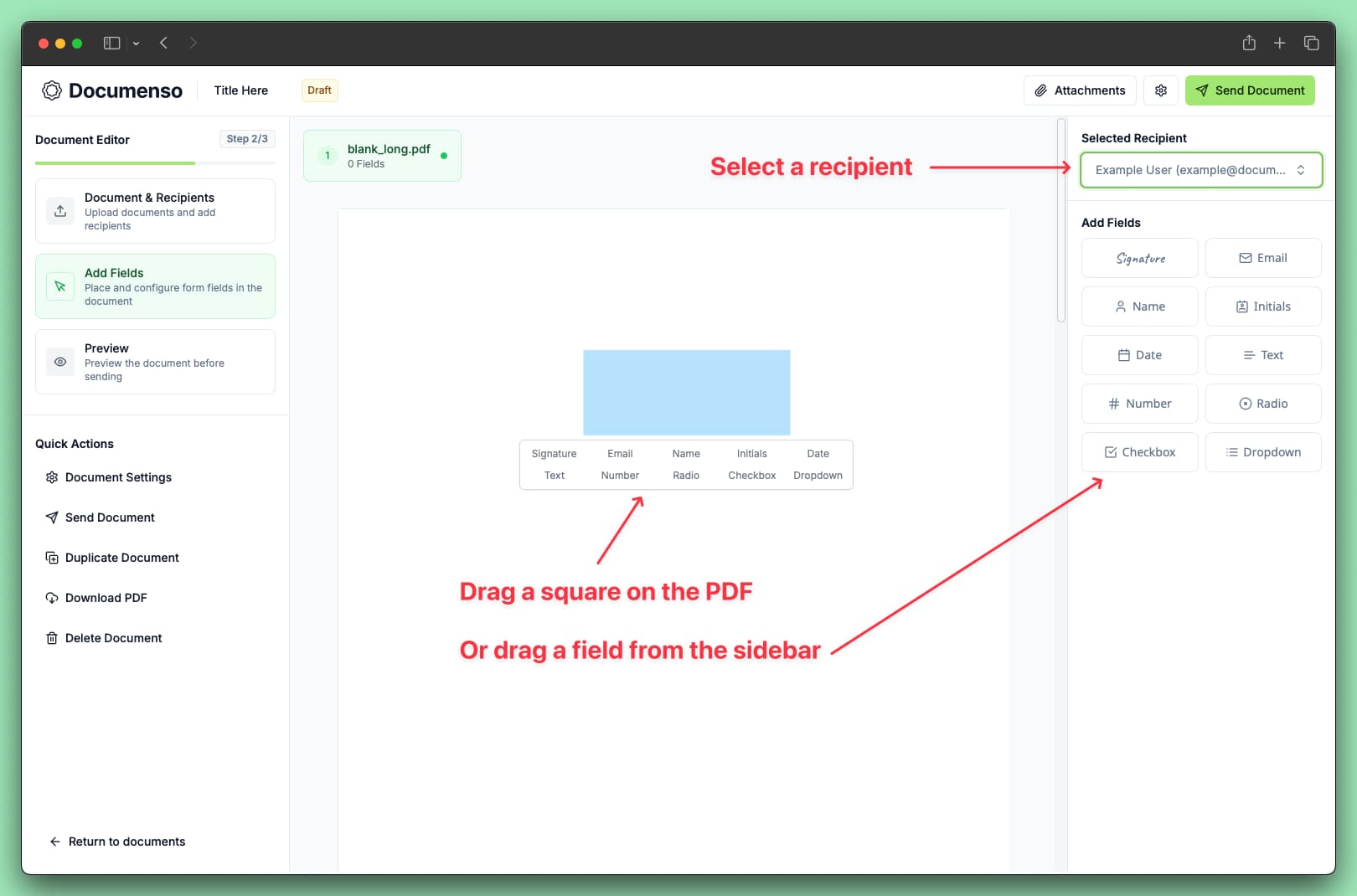
Add a Field to Your Document
Select a recipient
In the document editor, select the recipient you want to assign fields to from the recipient list in the sidebar. The selected recipient's color highlights which fields belong to them.
Drag a field onto the document
Click and drag a field type from the field palette onto your document. Available field types include:
Position the field
Drop the field where you want it on the document. You can drag it to reposition after placing.
Each signer must have at least one Signature field assigned to them. The document cannot be sent without this.
Assign Fields to Recipients
Fields are color-coded by recipient. To change which recipient a field belongs to:
Select the field
Click on the field to select it.
Change the recipient
In the field properties panel, change the Recipient dropdown.
Confirm the assignment
The field color updates to match the new recipient.
When you have multiple recipients, make sure each one has the appropriate fields assigned:
- Signers need at least one Signature field
- Approvers can have fields but don't require them
- Viewers cannot have fields assigned
- Assistants can pre-fill fields for other recipients
Position and Resize Fields
Moving Fields
Click and drag any field to reposition it on the document. Fields snap to help with alignment.
Resizing Fields
Click a field to select it, then drag the corner handles to resize. This is useful for:
- Making signature fields larger for handwritten signatures
- Expanding text fields to accommodate longer input
- Fitting fields into existing form areas on your PDF
Multi-Page Documents
Navigate between pages using the page controls. Fields placed on a page stay on that page. You can place fields on any page of your document.
Configure Field Properties
Click on any field to open its properties panel. Available options vary by field type.
Common Properties
| Property | Description |
|---|---|
| Required | Recipient must complete this field to finish signing |
| Read-only | Lock the field with a pre-filled value that cannot be changed |
| Label | Text displayed above the field |
| Font size | Size of text in the field (8-96px) |
Text Field Properties
| Property | Description |
|---|---|
| Placeholder | Hint text shown when the field is empty |
| Default value | Pre-filled text that recipients can modify |
| Character limit | Maximum characters allowed |
| Text alignment | Left, center, or right |
Number Field Properties
| Property | Description |
|---|---|
| Minimum value | Lowest allowed number |
| Maximum value | Highest allowed number |
| Number format | Display format for the number |
Selection Field Properties (Checkbox, Radio, Dropdown)
| Property | Description |
|---|---|
| Options | List of selectable values |
| Default selection | Pre-selected option(s) |
| Direction | Vertical or horizontal layout (Checkbox/Radio only) |
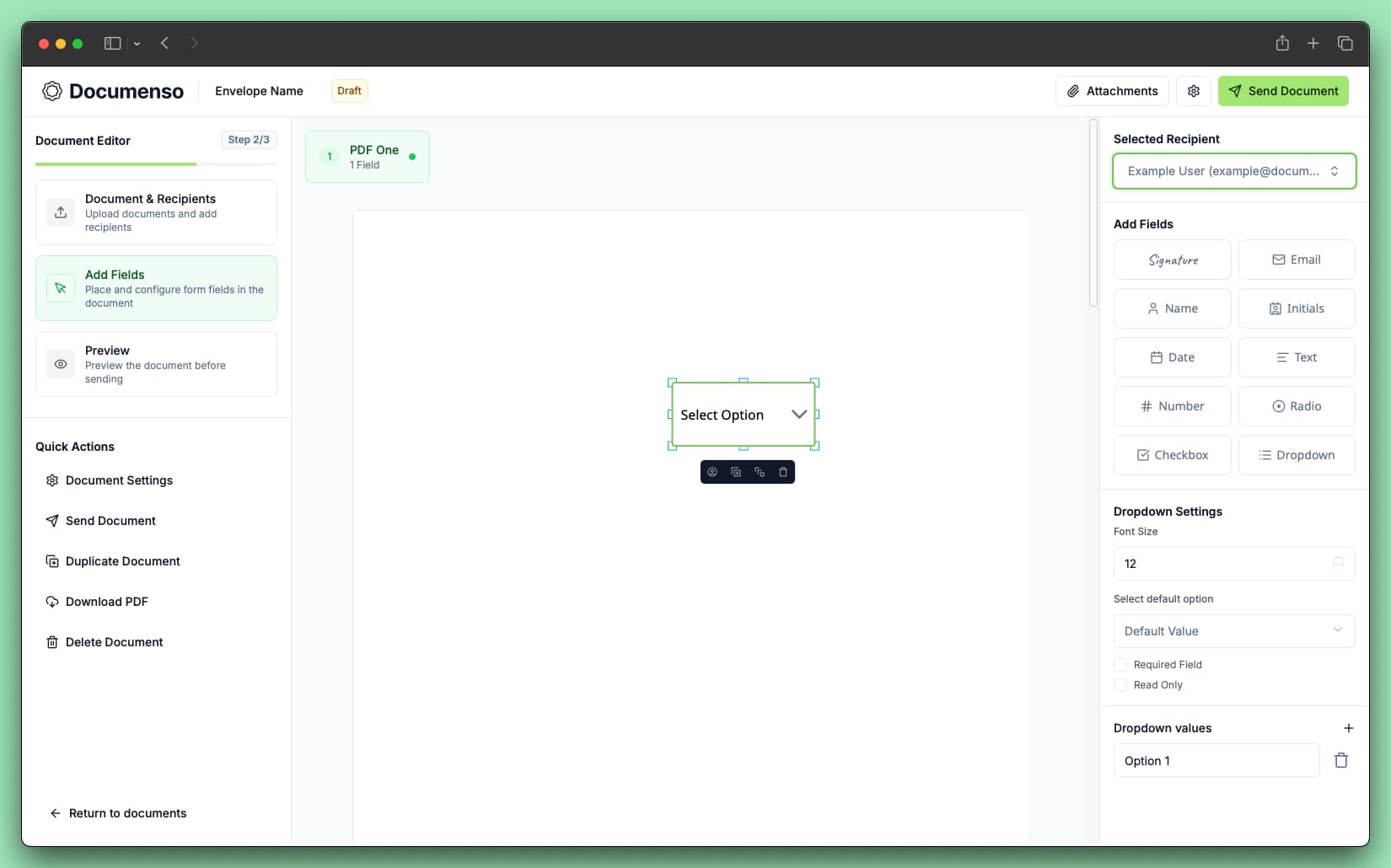
For detailed information on all field types, see Field Types.
Common Field Patterns
Signature Block
A typical signature block includes the following fields:
- Signature: Where the recipient signs
- Name: Prints their full name below
- Date: Records when they signed
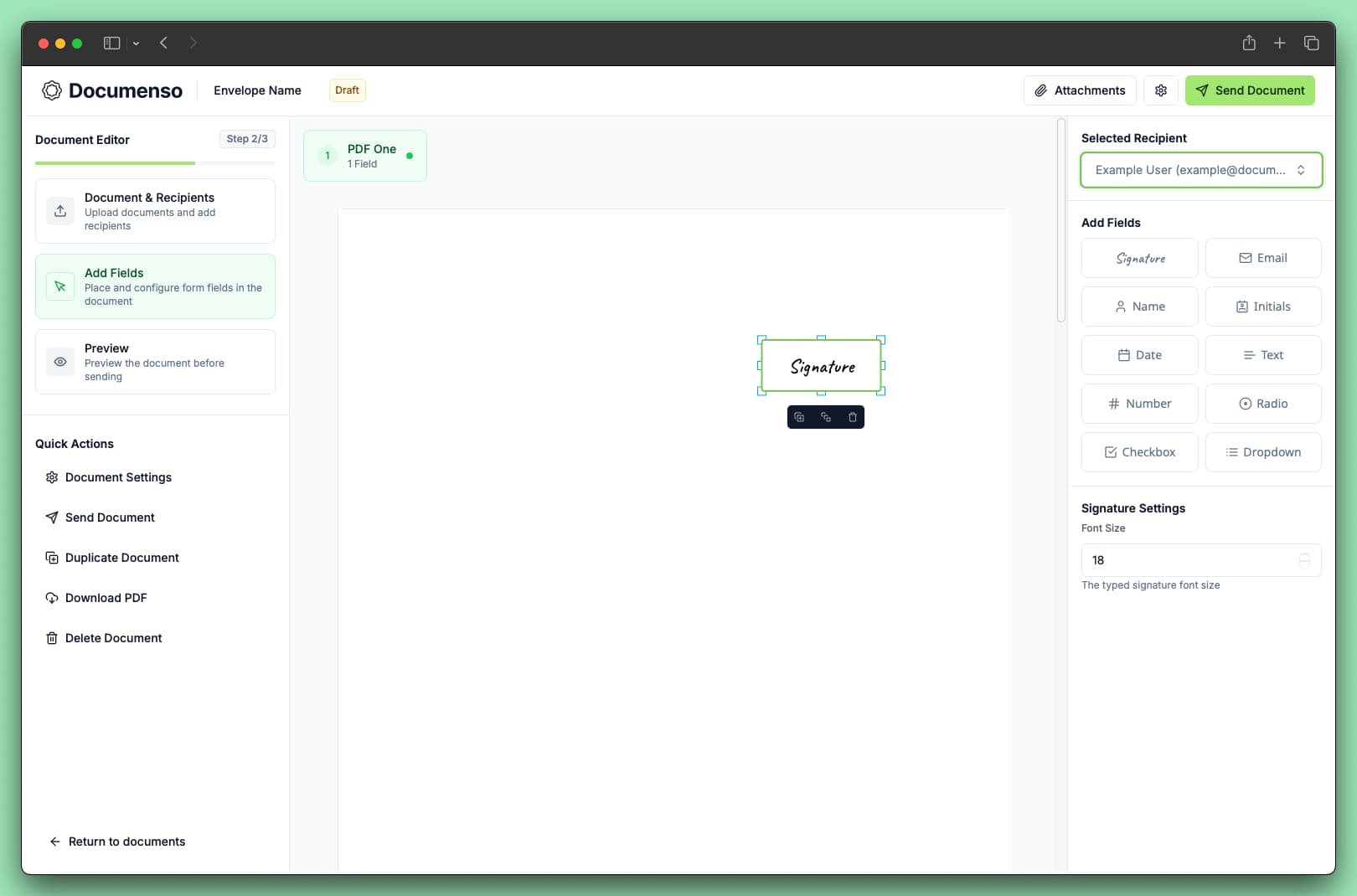
Place these fields together at the bottom of your document or wherever signature lines appear.
Terms Acceptance
For documents requiring explicit agreement to terms:
Add a Checkbox field
Add a Checkbox field with options like "I agree to the terms and conditions".
Mark as required
Mark the field as Required.
Place near the terms
Place it near the terms text.
Information Collection
When gathering additional information from signers:
Add Text fields
Add Text fields for addresses, job titles, or company names.
Add Number fields
Use Number fields for quantities, IDs, or phone numbers.
Add Dropdown fields
Use Dropdown fields for selections like country or department.
Set placeholders
Set Placeholder text to guide what information you need.
Multiple Signers
When you have multiple people signing the same document:
Create signature blocks per signer
Create separate signature blocks for each signer.
Assign fields to recipients
Assign each block's fields to the correct recipient.
Verify with color coding
Use the recipient color coding to verify assignments.
Optional: enable signing order
Consider enabling signing order if signers should sign in sequence.
Edit or Delete Fields
Click on any field to select it and open its properties panel. Make your changes and they save automatically.
See Also
- Send Documents - Send for signing and start collecting signatures
- Create Templates - Save this field layout as a reusable template
- Field Types - Detailed configuration options for all field types