Field Types
Placeholder types for capturing signatures, text, dates, and selections during signing.
Field Types Overview
| Field Type | Description | Auto-filled |
|---|---|---|
| Signature | Recipient's signature (drawn, typed, or uploaded) | No |
| Initials | Recipient's initials | No |
| Recipient's email address | Yes | |
| Name | Recipient's full name | Yes |
| Date | Date the field was completed | Yes |
| Text | Free-form text input | No |
| Number | Numeric input with optional validation | No |
| Radio | Single selection from a list of options | No |
| Checkbox | Multiple selections from a list of options | No |
| Dropdown | Single selection from a dropdown menu | No |
Signature
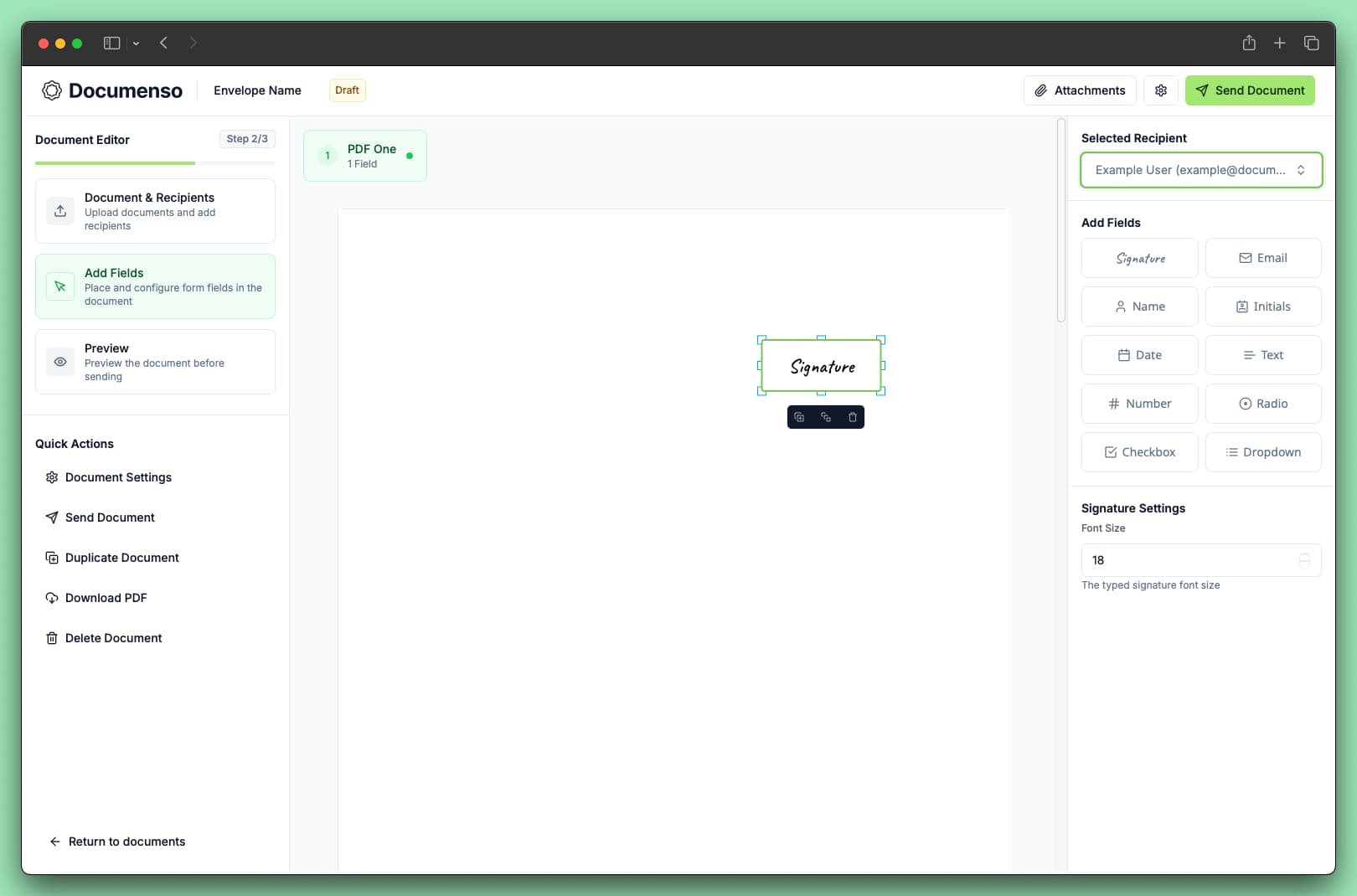
The signature field captures the recipient's legally binding signature. Recipients can:
- Draw their signature using a mouse or touchscreen
- Type their name and select a font style
- Upload an image of their signature
Configuration Options
| Option | Description |
|---|---|
| Required | Whether the field must be completed before signing |
| Read-only | Lock the field with a pre-filled value |
| Label | Display text shown above the field |
Common Use Cases
- Contract execution
- Agreement acceptance
- Authorization approvals
Initials
The initials field captures abbreviated signatures, typically used to acknowledge individual pages or clauses.
Configuration Options
| Option | Description |
|---|---|
| Required | Whether the field must be completed |
| Read-only | Lock the field with a pre-filled value |
| Label | Display text shown above the field |
| Text alignment | Left, center, or right alignment |
Common Use Cases
- Page acknowledgment
- Clause acceptance
- Change or amendment approval
The email field displays the recipient's email address. This field is automatically populated with the email address used to send the signing request.
Configuration Options
| Option | Description |
|---|---|
| Required | Whether the field must be completed |
| Read-only | Lock the field (recommended for auto-filled values) |
| Label | Display text shown above the field |
| Text alignment | Left, center, or right alignment |
Common Use Cases
- Contact information sections
- Identity verification
- Record keeping
Name
The name field captures the recipient's full name. When the recipient has a name on file, the field can be auto-populated.
Configuration Options
| Option | Description |
|---|---|
| Required | Whether the field must be completed |
| Read-only | Lock the field with a pre-filled value |
| Label | Display text shown above the field |
| Text alignment | Left, center, or right alignment |
Common Use Cases
- Signature blocks
- Party identification
- Contact details
Date
The date field records when the recipient completed the field or signed the document. By default, it auto-fills with the current date.
Configuration Options
| Option | Description |
|---|---|
| Required | Whether the field must be completed |
| Read-only | Lock the field with a pre-filled value |
| Label | Display text shown above the field |
| Text alignment | Left, center, or right alignment |
Common Use Cases
- Signature date
- Agreement effective date
- Timestamp records
Text
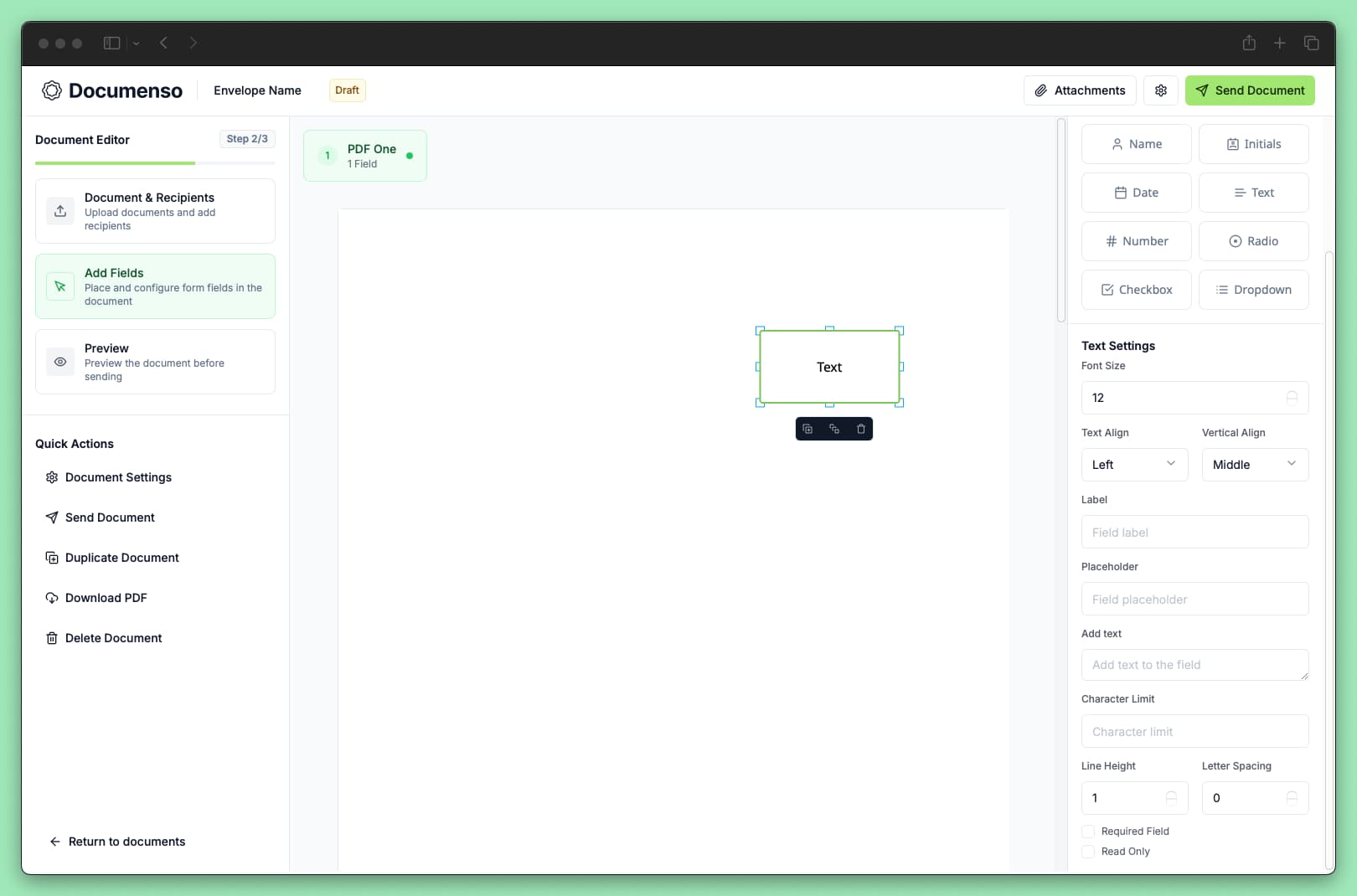
The text field accepts free-form text input from recipients. Use this for any information that doesn't fit other field types.
Configuration Options
| Option | Description |
|---|---|
| Required | Whether the field must be completed |
| Read-only | Lock the field with a pre-filled value |
| Label | Display text shown above the field |
| Placeholder | Hint text shown when the field is empty |
| Default value | Pre-filled text that recipients can modify |
| Character limit | Maximum number of characters allowed |
| Text alignment | Left, center, or right alignment |
| Line height | Spacing between lines of text |
| Letter spacing | Spacing between characters |
Rules
- A field cannot be both required and read-only at the same time
- A read-only field must have a default text value (it cannot be empty)
- The field is inserted automatically into the document if there is a default text value
- The text field character count cannot exceed the character limit
- The signer cannot modify a read-only field
Common Use Cases
- Address input
- Company names
- Job titles
- Custom information
Number
The number field accepts numeric input with optional validation constraints.
Configuration Options
| Option | Description |
|---|---|
| Required | Whether the field must be completed |
| Read-only | Lock the field with a pre-filled value |
| Label | Display text shown above the field |
| Placeholder | Hint text shown when the field is empty |
| Default value | Pre-filled number that recipients can modify |
| Minimum value | Lowest allowed number |
| Maximum value | Highest allowed number |
| Number format | Display format for the number |
| Text alignment | Left, center, or right alignment |
Rules
- The value must be a number
- A field cannot be both required and read-only at the same time
- A read-only field must have a default number value
- If a default number and a maximum value are set, the default must be less than the maximum
- If a default number and a minimum value are set, the default must be greater than the minimum
- The value must match the number format if a number format is set
Common Use Cases
- Quantities
- Pricing
- Phone numbers
- Employee IDs
Radio
The radio field presents a list of options where the recipient can select exactly one.
Configuration Options
| Option | Description |
|---|---|
| Required | Whether a selection must be made |
| Read-only | Lock the field with a pre-selected value |
| Label | Display text shown above the field |
| Options | List of selectable values |
| Default selection | Pre-selected option |
| Direction | Vertical or horizontal layout |
Rules
- A field cannot be both required and read-only at the same time
- A read-only field must have at least one option
- The field auto-signs if there is a default value
- The signer cannot select a value that's not in the options list
- Only one option can be selected at a time
Common Use Cases
- Yes/No questions
- Single-choice selections
- Status indicators
- Plan or tier selection
Checkbox
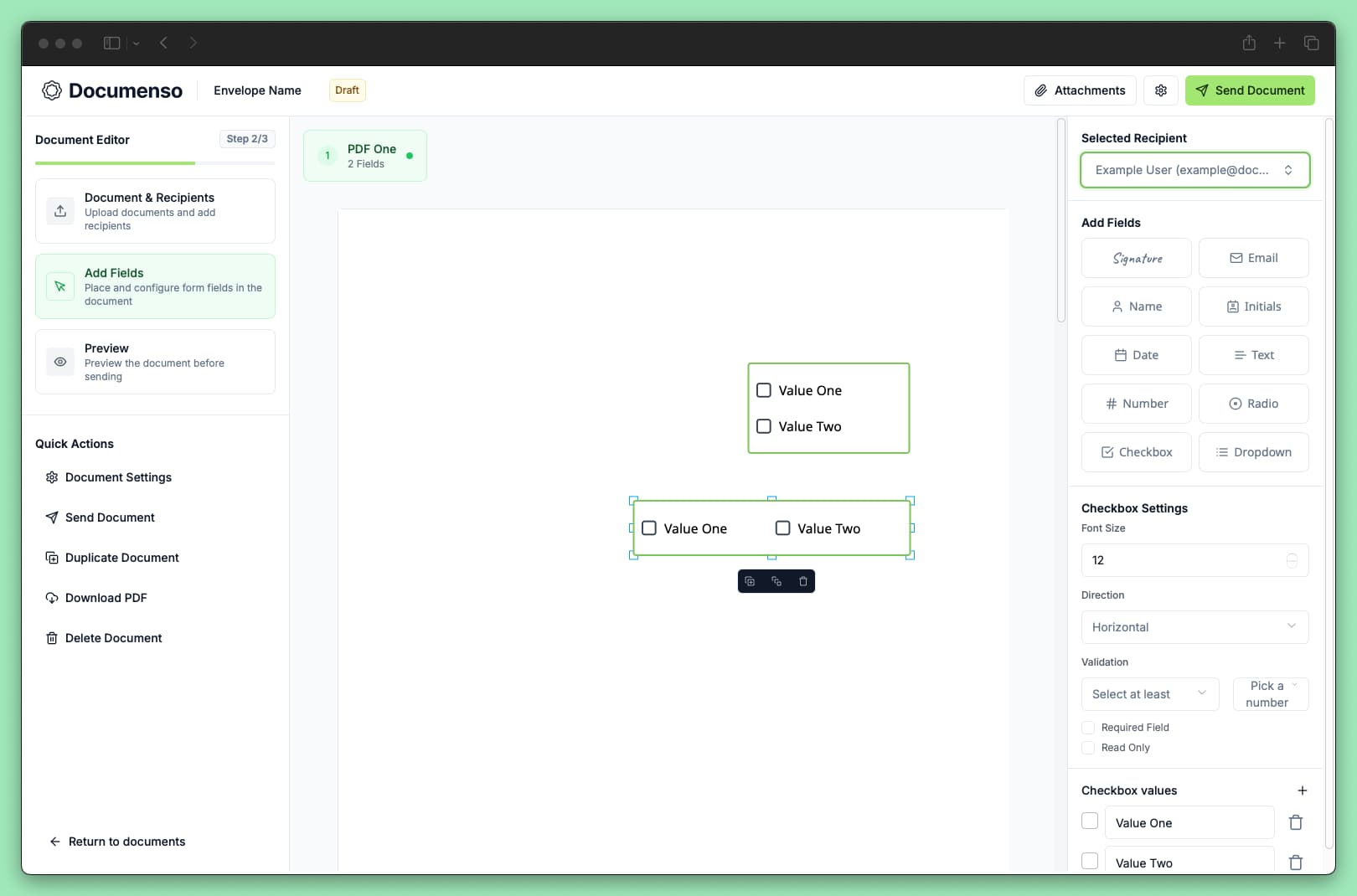
The checkbox field presents a list of options where the recipient can select multiple items.
Configuration Options
| Option | Description |
|---|---|
| Required | Whether at least one selection must be made |
| Read-only | Lock the field with pre-selected values |
| Label | Display text shown above the field |
| Options | List of selectable values |
| Default selections | Pre-selected options |
| Validation rule | Rules for minimum/maximum selections |
| Direction | Vertical or horizontal layout |
Rules
- A field cannot be both required and read-only at the same time
- A read-only field must have at least one checked option
- The field auto-signs if there are default values
- The validation rule enforces selection counts: "At least", "At most", or "Exactly" a specified number of options
- The signer cannot select a value that's not in the options list
Common Use Cases
- Terms and conditions acceptance
- Multiple acknowledgments
- Feature selection
- Preference lists
Dropdown
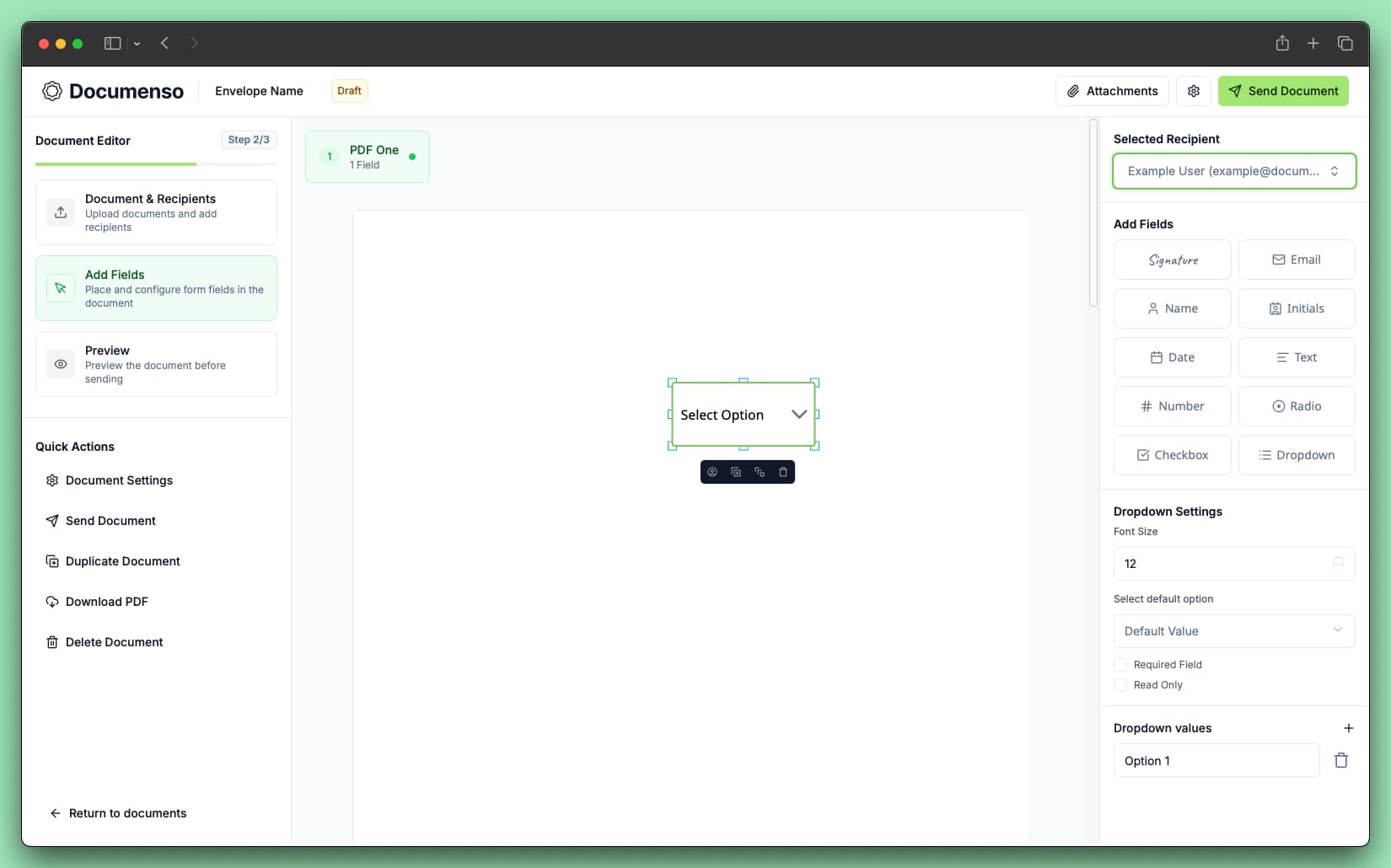
The dropdown field presents a list of options in a collapsible menu. Recipients select one option from the list.
Configuration Options
| Option | Description |
|---|---|
| Required | Whether a selection must be made |
| Read-only | Lock the field with a pre-selected value |
| Label | Display text shown above the field |
| Options | List of selectable values |
| Default value | Pre-selected option |
Rules
- A field cannot be both required and read-only at the same time
- A read-only field must have a default value
- The default value must be one of the options
- The field auto-signs if there is a default value
- The signer cannot select a value that's not in the options list
Common Use Cases
- Country or state selection
- Department selection
- Category classification
- Status selection
Common Configuration Options
All field types share these base configuration options:
| Option | Description | Default |
|---|---|---|
| Required | Recipient must complete the field to finish signing | false |
| Read-only | Field value cannot be changed by the recipient | false |
| Label | Text displayed above or near the field | None |
| Font size | Size of the text in the field (8-96px) | 12px |
Validation
Fields validate input based on their type and configuration:
- Required fields must be completed before the recipient can finish signing
- Read-only fields display pre-filled values that cannot be modified
- Number fields validate against minimum and maximum values when configured
- Checkbox fields can enforce a minimum or maximum number of selections
If validation fails, the recipient sees an error message and must correct the input before proceeding.
Related
- Add Fields to Documents - Learn how to place fields on your documents
- Recipient Roles - Understand who can be assigned fields
- Fields API - Programmatically add fields via the API