Use Templates
Create documents from your templates by filling in recipient details and optionally sending immediately.
Create a Document from a Template
Open the template
Navigate to Templates in the sidebar and find the template you want to use. Click on the template to open its detail page, or click the three-dot menu and select Use Template.
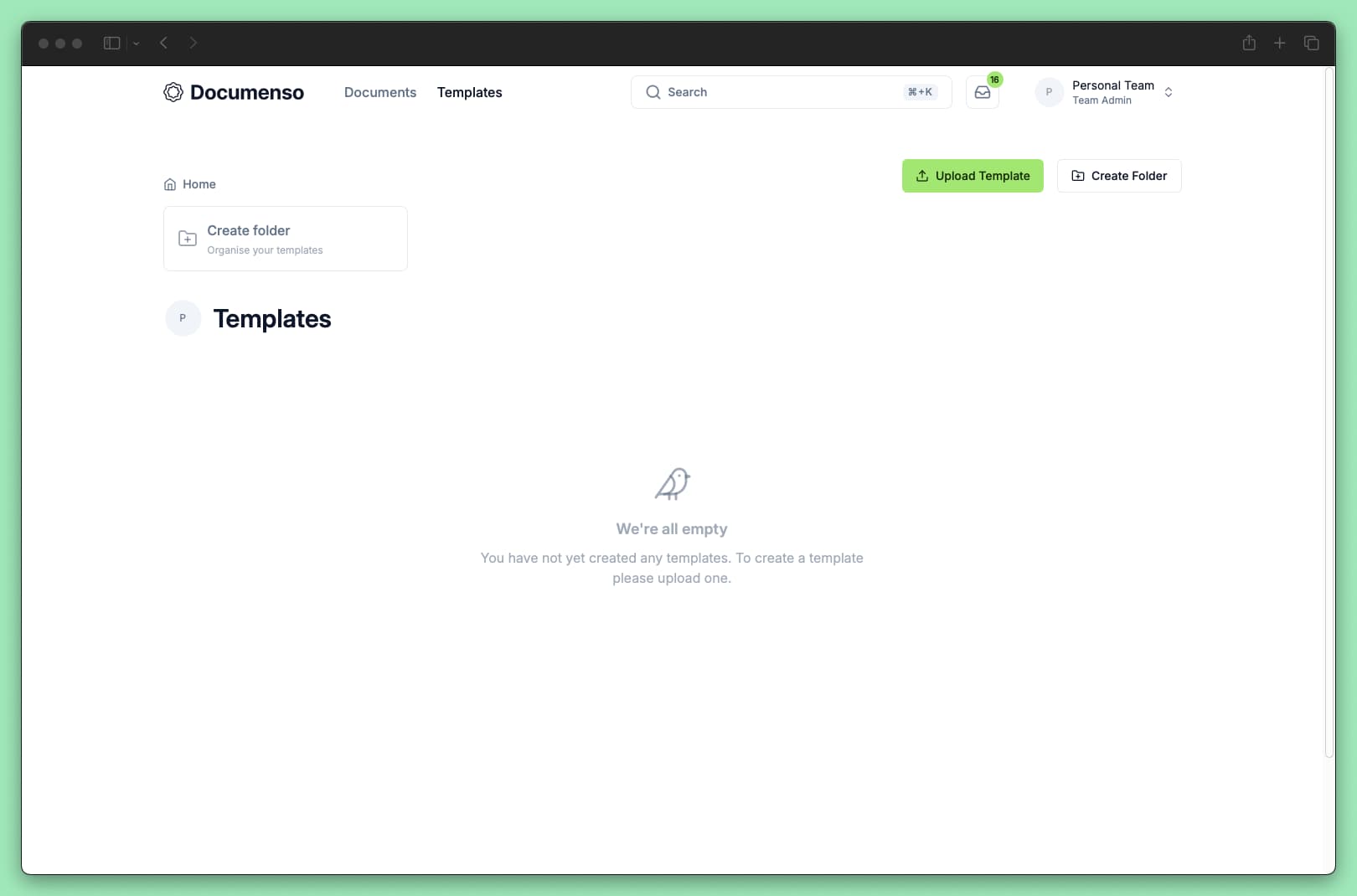
Click use template
From the template detail page, click the Use Template button. A dialog opens where you configure the document.
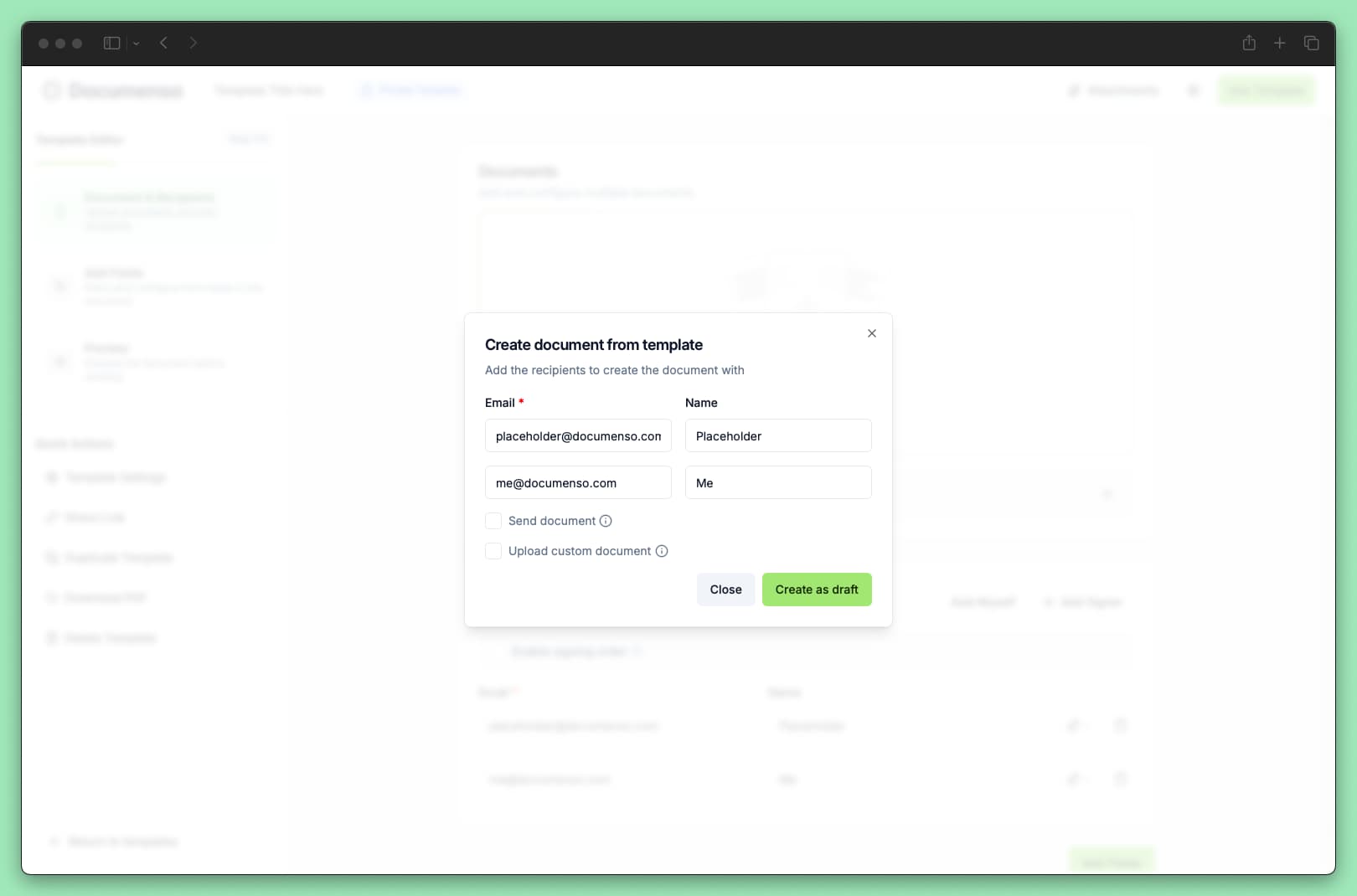
Fill in recipient details
For each recipient defined in the template, enter their:
- Email (required): The recipient's email address
- Name (optional): The recipient's display name
If the template has pre-filled recipient information, those fields appear with the existing values. You can modify them or leave them as-is.
Choose how to create the document
Creates the document without sending. You can review and edit it before sending. Leave the Send document checkbox unchecked.
New document
Click Create as draft or Create and send depending on what you want to do. You are then redirected to the new document.
Upload a Custom Document
You can replace the template's PDF with a different document when creating from a template. This keeps all the field positions and recipient settings but uses your uploaded file.
In the Use Template dialog, check Upload custom document.
Click Upload next to each document you want to replace and select a PDF from your computer.
Complete the rest of the form and create the document.
The uploaded document must be a PDF. Field positions are preserved from the template, so the new document should have a similar layout.
Sequential Signing
If the template uses sequential signing, recipients receive the document in order. The signing order displays next to each recipient in the dialog and cannot be changed when using the template.
To modify the signing order, edit the template itself before creating documents from it.
Distribution Methods
How recipients receive the document depends on the template's distribution method:
| Distribution method | What happens |
|---|---|
| Recipients receive an email with a link to sign | |
| None | No emails sent. You receive signing links to share manually |
When using a template with no email distribution and selecting Create as pending, you're redirected to the document page where signing links are displayed for you to copy and share.
Template vs Document Differences
When you create a document from a template, the document becomes independent. Changes you make to the document don't affect the template, and changes to the template don't affect existing documents.
| What you can change | Template | Document created from template |
|---|---|---|
| Recipients | Yes | Yes (before sending) |
| Fields | Yes | Yes (before sending) |
| PDF content | Yes | Only at creation (custom upload) |
| Settings | Yes | Yes (before sending) |
Documents created from a template are tracked on the template's detail page under Documents created from template.
Bulk Send
To create multiple documents from one template with different recipients, use bulk send:
Go to the template detail page or templates list.
Click the three-dot menu and select Bulk send.
Upload a CSV file with recipient information. Each row creates a separate document.
This is useful for sending the same document to many people, such as offer letters or agreements.
See Also
- Create a Template - Build reusable templates from your documents
- Direct Links - Let recipients sign without knowing their email upfront
- Send Documents - Sending options and email customization