Branding
Customize how your documents appear to recipients by adding your logo to signing pages and company details in email notifications.
Plan Requirements
Custom branding requires a Teams plan or higher. On lower plans, the branding settings page displays an upgrade prompt.
What You Can Customize
| Setting | Description |
|---|---|
| Logo | Displayed on signing pages when recipients view and sign your documents |
| Website URL | Makes your logo clickable, linking to your website |
| Brand Details | Text shown at the bottom of email notifications (address, company info, etc.) |
Limitations
| Item | Limit / Requirement |
|---|---|
| Logo file size | Maximum 5MB |
| Supported formats | JPG, PNG, or WebP |
| Brand details | Maximum 500 characters |
| Website URL | Must be a valid URL (e.g., https://example.com) |
Configure Branding
Navigate to branding settings
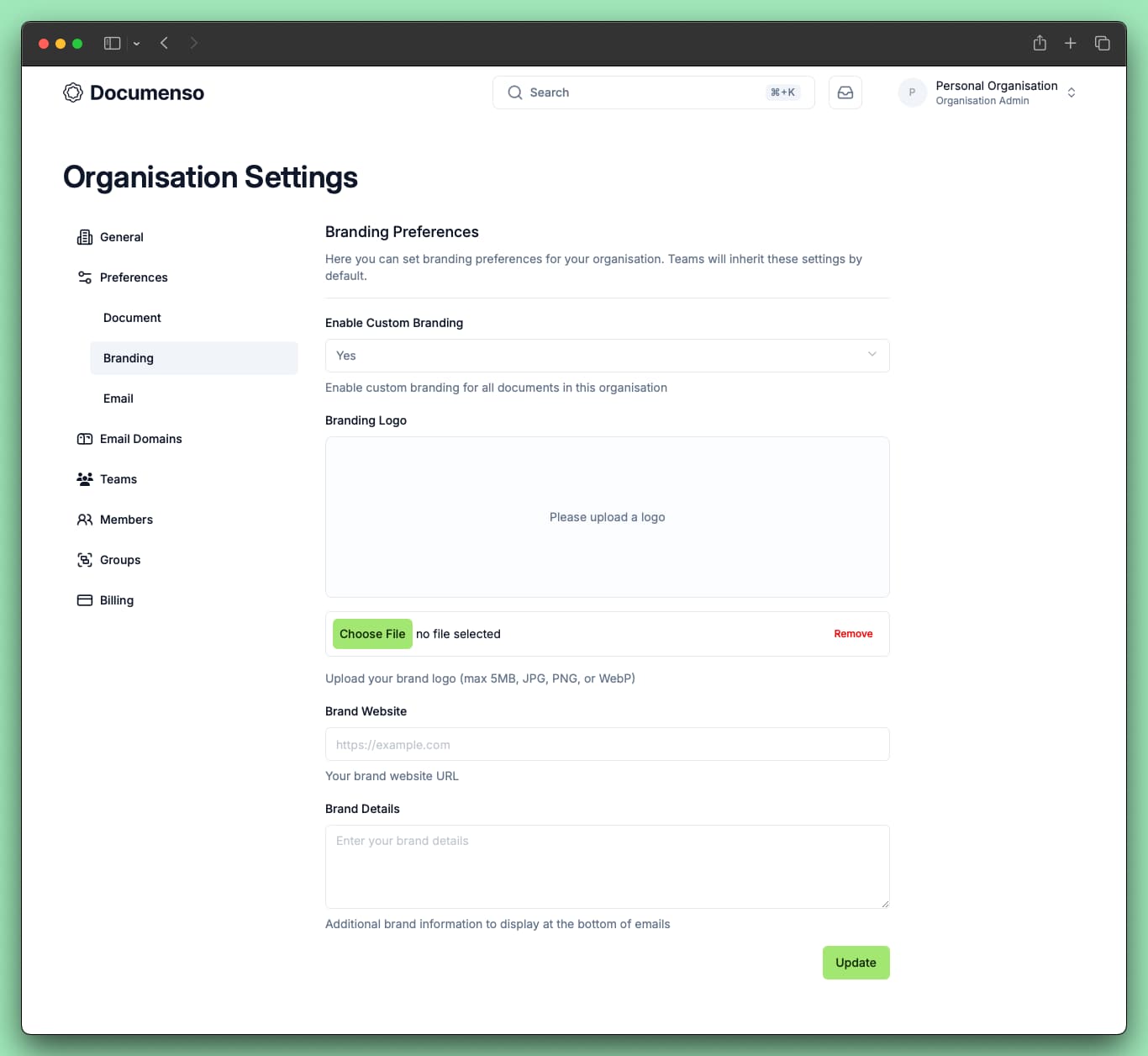
Go to your organisation settings and select the Branding tab under Preferences. For team branding, go to your team's settings page and select the Branding tab under Preferences.
Enable custom branding
Select Yes from the Enable Custom Branding dropdown.
When disabled, recipients see the default Documenso branding.
Upload your logo
Click the file input to select an image from your computer. A preview displays after selection.
To remove an uploaded logo, click Remove.
Add your website URL (optional)
Enter your website URL in the Brand Website field. When set, clicking your logo on the signing page opens your website in a new tab.
Add brand details (optional)
Enter company information in the Brand Details field. This text appears at the bottom of email notifications sent to recipients.
Use this for:
- Company address
- Contact information
- Legal disclaimers
Save changes
Click Update to save your branding settings.
Where Branding Appears
| Location | Effect |
|---|---|
| Signing pages | Recipients see your logo when viewing and signing documents |
| Email notifications | Brand details appear at the bottom of signing request emails |
Organisation vs Team Branding
Branding can be configured at two levels:
Organisation branding
Set default branding for your entire organisation in Organisation Settings > Preferences > Branding. All teams inherit these settings by default.
Team branding
Override organisation branding for specific teams in Team Settings > Preferences > Branding. Team settings support three options:
| Setting | Behavior |
|---|---|
| Yes | Enable branding with team-specific logo and details |
| No | Disable branding for this team (show default Documenso branding) |
| Inherit from organisation | Use the organisation's branding settings |
When a team has Inherit from organisation selected, any changes to organisation branding automatically apply to that team.
For individual branding fields (logo, URL, details), leaving them blank also inherits from the organisation.
Troubleshooting
See Also
- Profile Settings - Update your name and public profile
- Security Settings - Configure two-factor authentication
- Create a Team - Set up team-specific branding