Security
Manage your password, enable two-factor authentication (2FA), and configure passkeys.
Change Your Password
If you signed up with email and password (not Google or another provider), you can change your password at any time.
Click your avatar in the top right corner.
Go to Settings.
Open the Security tab.
Enter your current password, new password, and confirmation, then click Update password.
The password change form only appears if you have a password-based account. If you signed up with Google or another provider, you won't see this option.
Two-Factor Authentication (2FA)
Two-factor authentication (2FA) and passkeys are used for high-security and high-compliance signatures in addition to account login.
Two-factor authentication adds a second layer of security by requiring a code from an authenticator app when you sign in or sign documents.
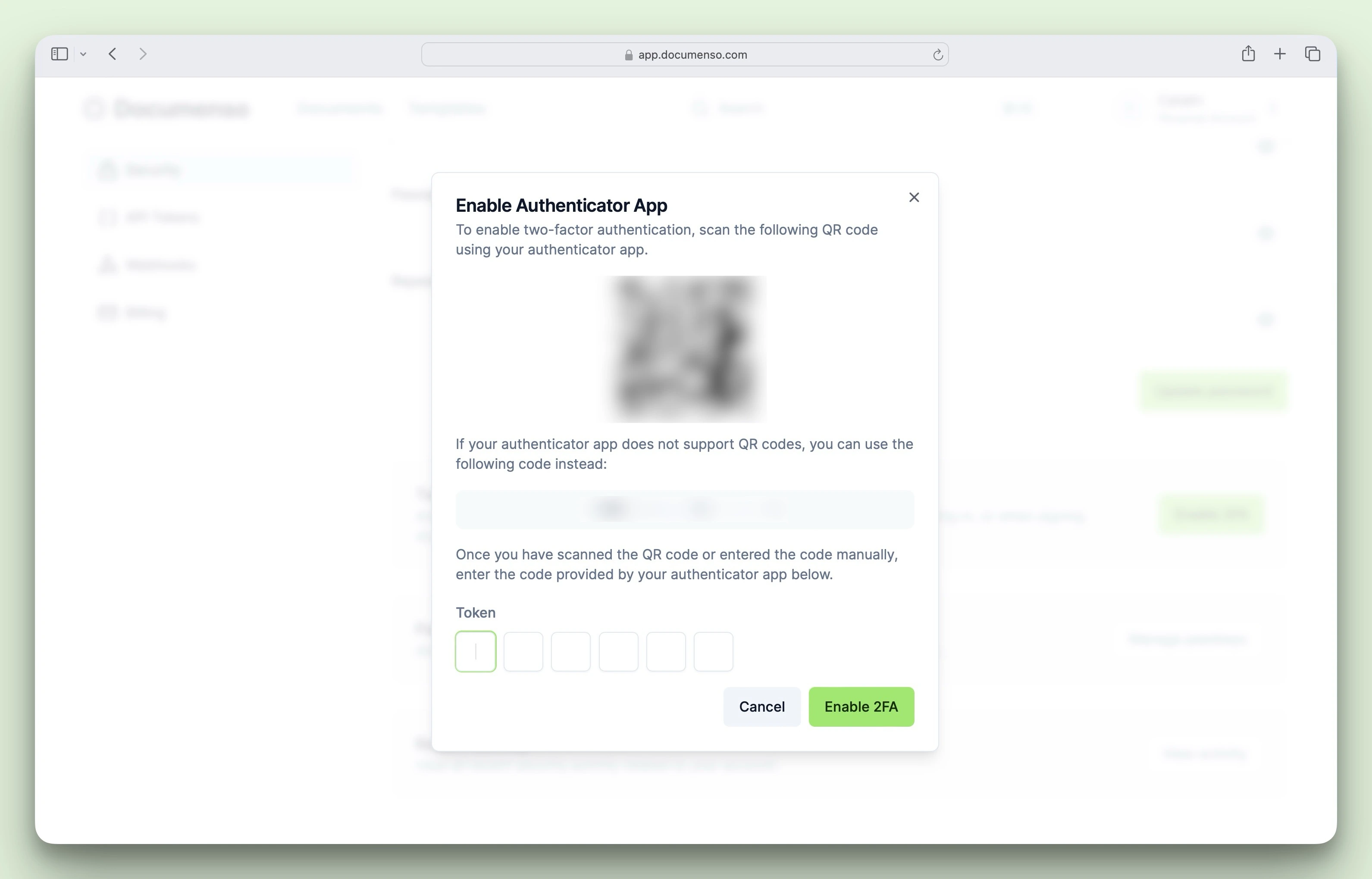
Enable 2FA
Open 2FA setup
Go to Settings, open the Security tab, find the Two factor authentication section, and click Enable 2FA.
Scan the QR code
Open your authenticator app (Google Authenticator, Authy, 1Password, etc.) and scan the QR code. If you can't scan, reveal the setup key and enter it manually.
Verify and save
Enter the 6-digit code from your app, click Enable, then save your recovery codes (see Recovery Codes below).
Logging in with Google does not require a 2FA code. As an authentication provider, your Google account is considered secure (e.g. you can configure 2FA on your Google account separately).
Logging in with a passkey does not require a 2FA code. Passkeys are considered two-factor by design — the passkey itself is the first factor, and access to the device that holds it is the second factor.
Disable 2FA
Go to Settings.
Open the Security tab.
Click Disable 2FA, enter a code from your authenticator app, then click Disable.
Recovery Codes
Recovery codes let you access your account if you lose access to your authenticator app. When you enable 2FA, Documenso generates a set of backup codes.
View Recovery Codes
Go to Settings, open the Security tab.
Click View Codes in the Recovery codes section.
Enter a code from your authenticator app to view your recovery codes.
Store Recovery Codes Safely
- Click Download to save them as a text file
- Store them in a secure location (password manager, safe, etc.)
- Each code can only be used once
If you lose both your authenticator app and your recovery codes, you will be locked out of your account. Store your recovery codes securely.
Passkeys
Passkeys provide passwordless authentication using biometrics, hardware security keys, or password managers. You can use passkeys to sign in to Documenso and to authenticate when signing documents.
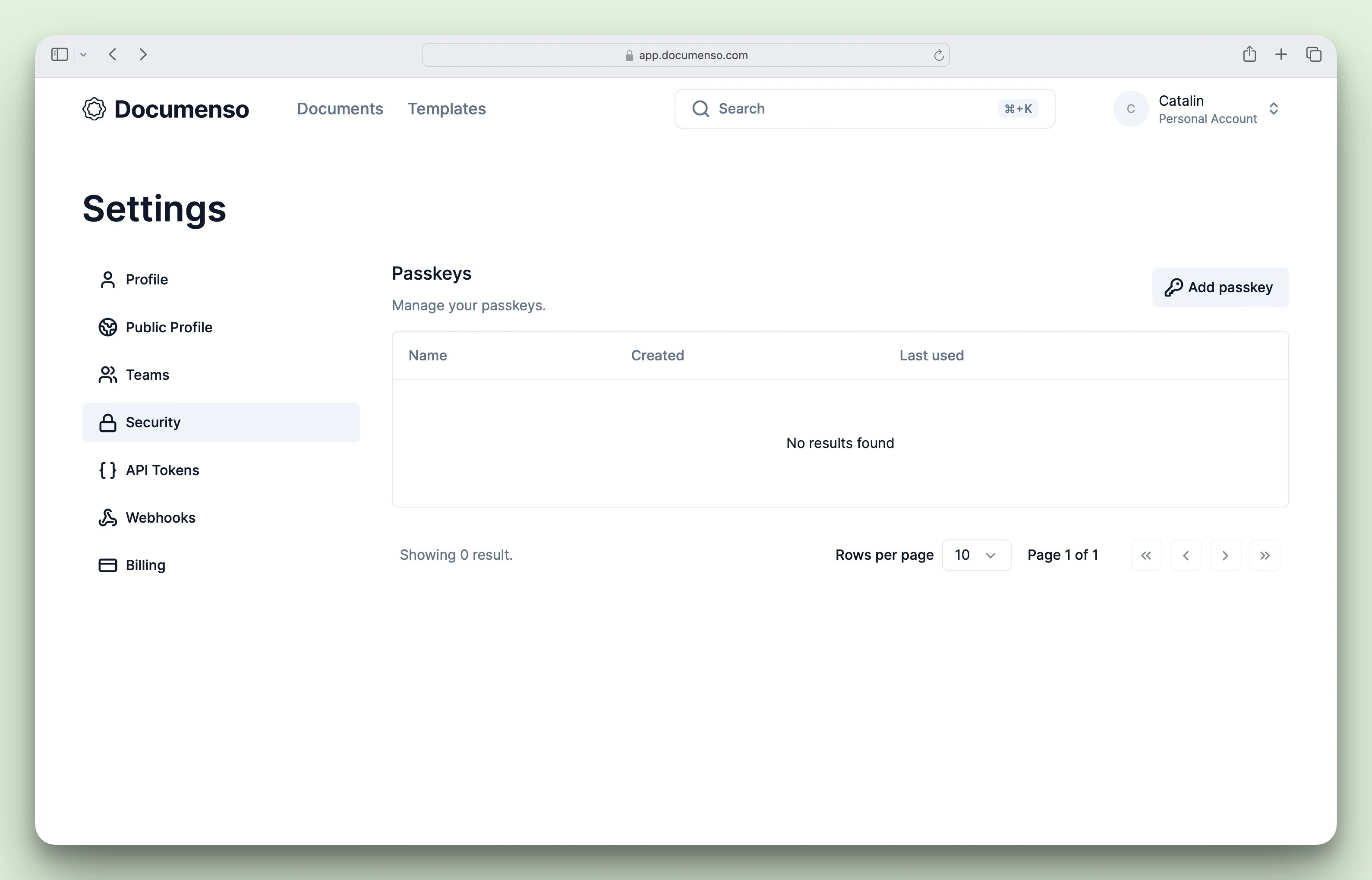
Add a Passkey
Open passkeys
Go to Settings, open the Security tab, then click Manage passkeys.
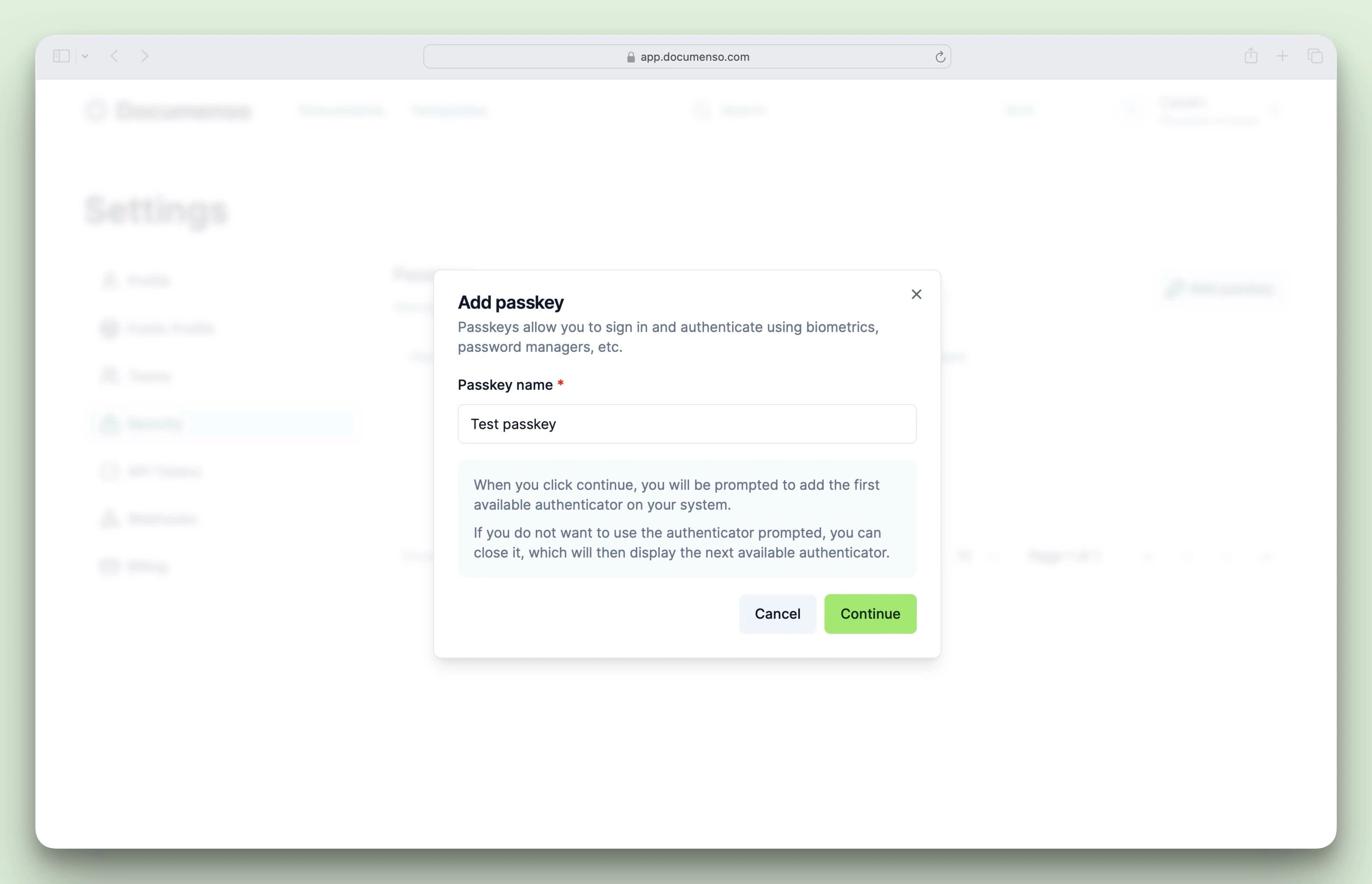
Add and name your passkey
Click Add passkey, enter a name (e.g. "MacBook Touch ID", "YubiKey"), then follow your browser's prompts to complete registration.
Manage Passkeys
From the passkeys page, you can:
- Rename a passkey by clicking the edit button
- Delete a passkey by clicking the delete button
Passkeys are device-specific. If you use multiple devices, add a passkey on each one.
See Also
- Sessions & Activity - View active sessions and security activity
- API Tokens - Manage programmatic access tokens
- Profile - Update your name, email, and signature
- Delete Account - Permanently delete your account