Document Visibility
Learn how to control the visibility of your team documents.
Overview
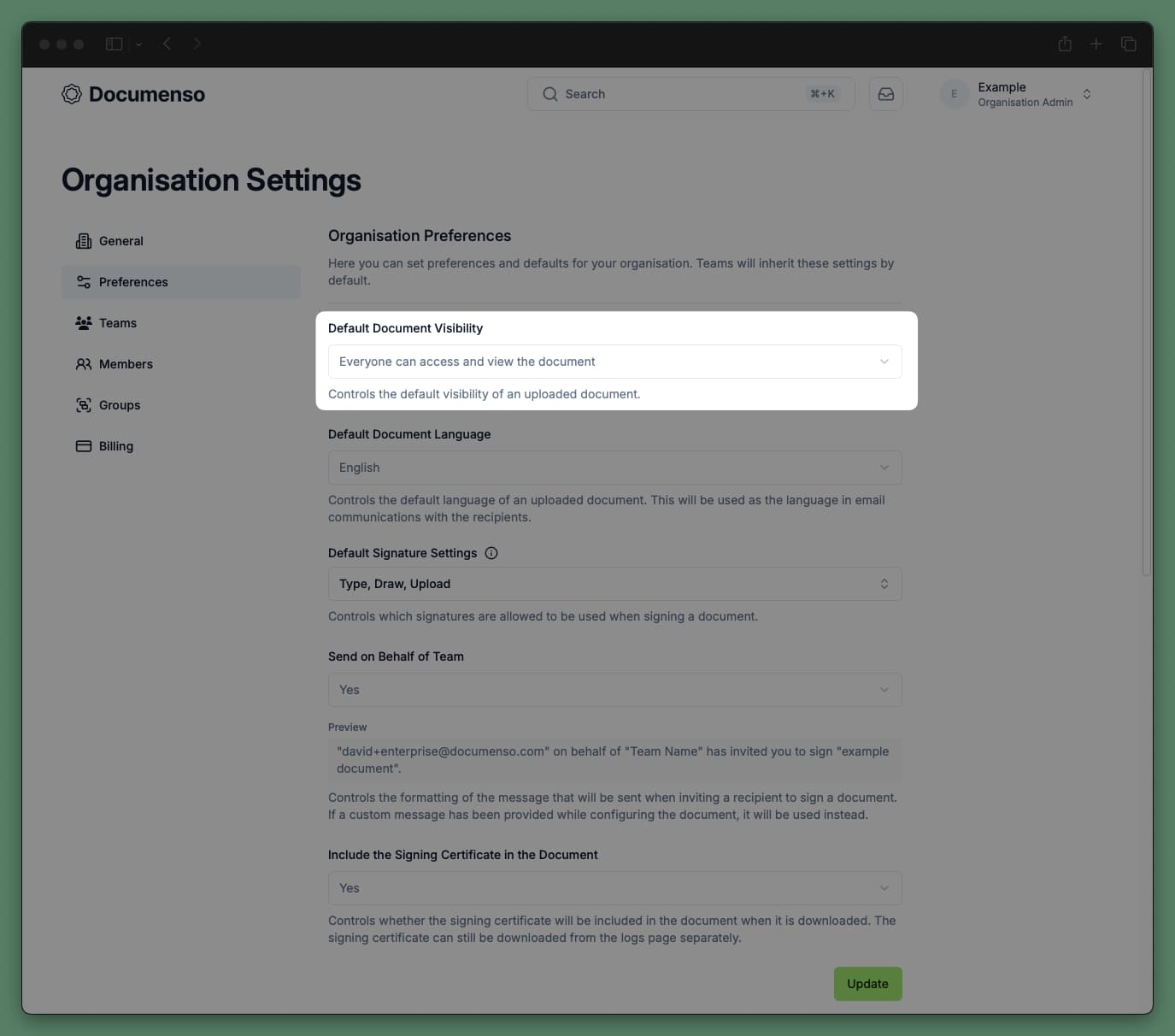
The default document visibility option allows you to control who can view and access the documents uploaded within a team.
This value can either be set in the document preferences, or when you create the document
Document Visibility Options
In Default Document Visibility (under document preferences), you can choose:
The default is Everyone. Change it in document preferences.
How It Works
When you create a document, its visibility depends on your role and the team's default. Select your role:
New documents use the team's default visibility. You cannot change the visibility in the document editor.
You can change visibility at any time by editing the document and choosing a different option.
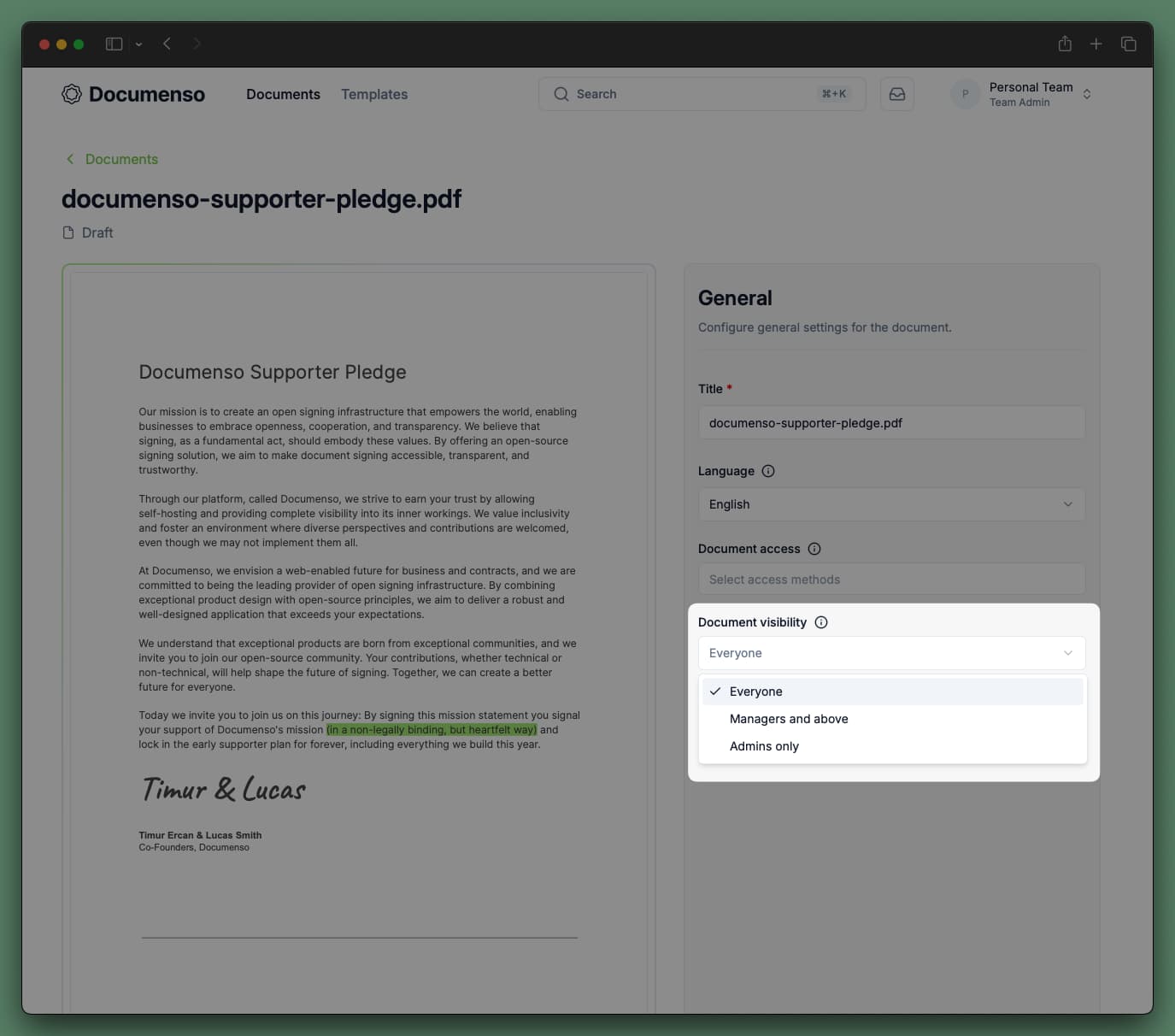
Updating the default document visibility in the team's general preferences will not affect the visibility of existing documents. You will need to update the visibility of each document individually.
A Note on Document Access
The document owner (the user who created the document) always has access to the document, regardless of the document's visibility settings. This means that even if a document is set to "Admins only", the document owner can still view and edit the document.
The recipient (the user who receives the document for signature, approval, etc.) also has access to the document, regardless of the document's visibility settings. This means that even if a document is set to "Admins only", the recipient can still view and sign the document.
See Also
- Document Preferences - Configure default document settings
- Team Members - Understand team member roles
- Send Documents - Send documents for signing