Learn how to set the email preferences for your team account.
Overview
Email preferences allow you to set the default settings when emailing documents to your recipients.
Preferences
Email preferences can be set on either the organisation or team level.
By default, teams inherit the preferences from the organisation. You can override these preferences on the team level at any time.
To access the preferences, navigate to either the organisation or teams settings page and click the Email tab under the Preferences section.
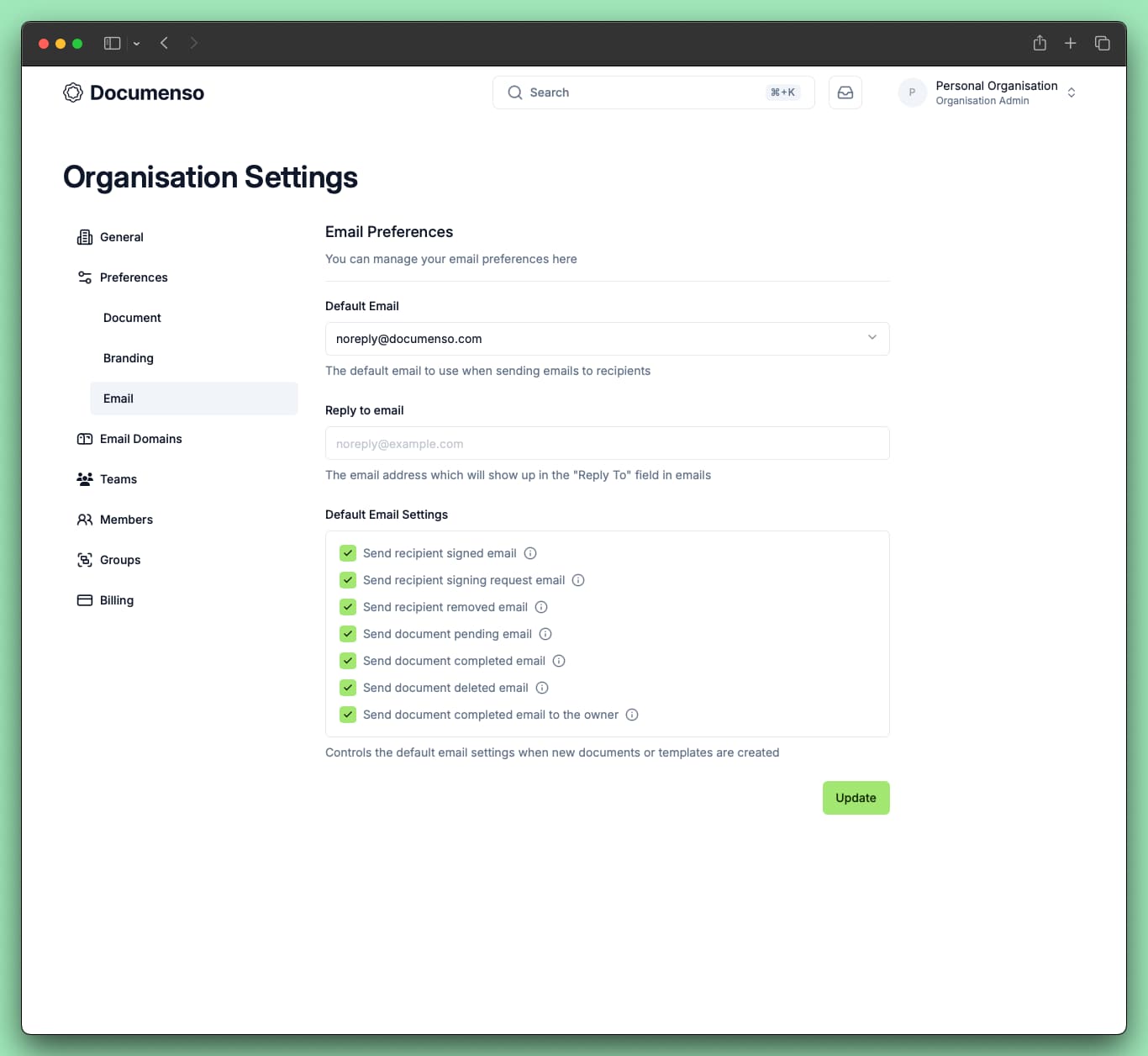
| Setting | Description |
|---|---|
| Default Email | The sender email address used when sending documents. Requires a verified email domain. Teams can inherit from the organisation or select their own. |
| Reply to email | Email address used in the "Reply To" field in outgoing emails. Leave blank to inherit from the organisation. |
| Default Email Settings | Controls which emails are sent to recipients during document signing (e.g. signing invitations, completion notifications). Teams can inherit from the organisation or override with custom settings. |
| Include Sender Details | Whether signing invitations show the individual sender's name alongside the team name. See sender details below. |
Sender Details
When Include Sender Details is set to Yes, signing invitations show the individual sender's name alongside the team name:
"Example User" on behalf of "Example Team" has invited you to sign "document.pdf"
When it is set to No, signing invitations show only the team name:
"Example Team" has invited you to sign "document.pdf"
If a custom message has been provided while configuring the document, it replaces the default body text, but the heading still follows this setting.
For documents sent with a team API token, the individual sender is the user who created the token.
See Also
- Email Domains - Send emails from your own domain
- Document Preferences - Configure other document defaults
- Send Documents - Customize emails when sending documents