Recipient Expiration
Set a signing deadline for recipients so document links expire after a configurable period.
Overview
Recipient expiration lets you set a deadline for how long recipients have to sign a document after it is sent. Once the deadline passes, the recipient can no longer access the signing link and the document owner is notified.
This is useful when:
- A business deal is contingent on being signed within a specific time frame
- A document is no longer relevant after a certain date
- You want to ensure recipients act promptly rather than leaving documents unsigned indefinitely
Expiration is tracked per recipient, not per document. If one recipient's deadline passes, other recipients can still sign. The document stays in a pending state so the owner can decide whether to resend or cancel.
Default Behaviour
Every organisation has a default expiration period of 3 months. This means that when you send a document, each recipient has 3 months from the time the document is sent to complete their signing.
You can change this default at the organisation or team level, or override it per document.
Settings Cascade
Expiration settings follow a three-level cascade: Organisation → Team → Document. Each level can override the one above it.
Sets the default for all teams in the organisation. Options are a custom duration or never expires.
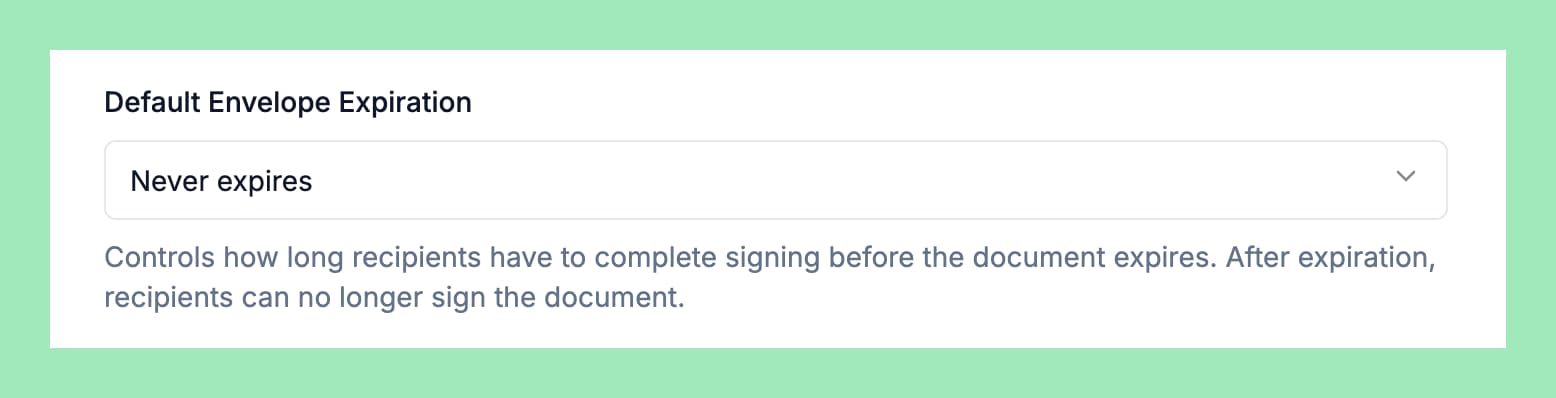
To configure, navigate to Organisation Settings > Preferences > Document and find Default Envelope Expiration.
Set Expiration for a Document
Open the document settings
In the document editor, open the Settings dialog and go to the General tab.
Configure the expiration
Find the Expiration field. Choose one of:
- Custom duration — enter a number and select a unit (days, weeks, months, or years)
- Never expires — the recipient can sign at any time
If you leave it unchanged, the team or organisation default applies.
Send the document
When you send the document, the expiration deadline is calculated from that moment. For example, if you set a 7-day expiration and send the document on March 1st, the recipient has until March 8th to sign.
You cannot change the expiration period after the document has been sent. To extend a recipient's deadline, resend the document to them — this resets the clock.
Set a Default Expiration Period
Navigate to document preferences
Go to Organisation Settings > Preferences > Document (or Team Settings > Preferences > Document for team-level overrides).
Configure the default
Find Default Envelope Expiration and choose:
- Custom duration — enter a number and unit
- Never expires — no deadline for recipients
- Inherit from organisation (team level only) — use whatever the organisation has configured
Save
Click Save to apply. New documents created after this change use the updated default.
Changing the default expiration does not affect documents that have already been sent. Only new documents use the updated setting.
What Happens When a Recipient Expires
When a recipient's signing deadline passes:
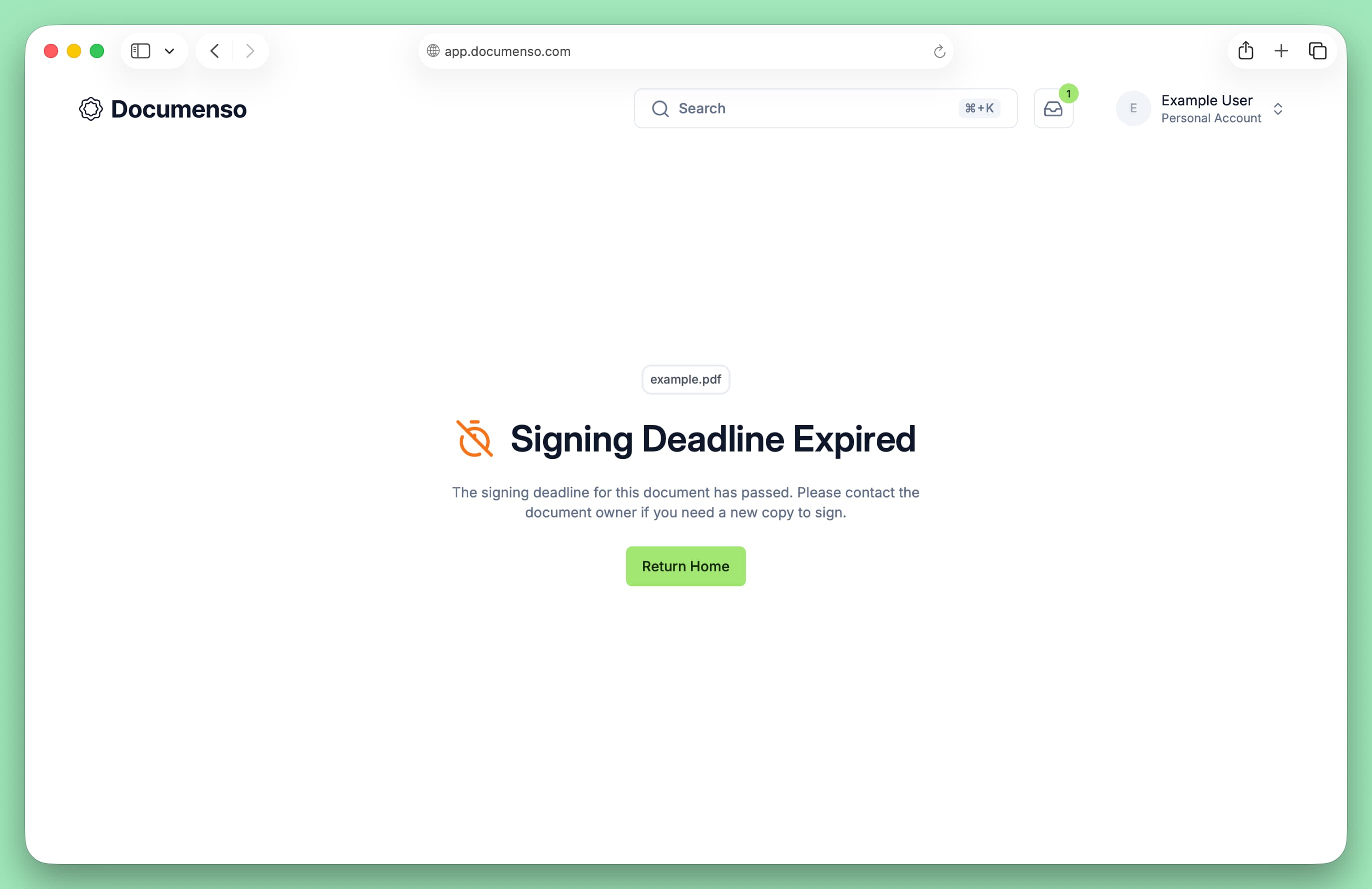
- The recipient can no longer access the signing link. They see a message explaining that the signing deadline has expired and to contact the document owner.
- The document owner receives an email notification with a link to view the document.
- An audit log entry is created recording the expiration.
- The document remains in a pending state — other recipients who have not expired can still sign.
Resending to Extend a Deadline
If a recipient's deadline has passed (or is about to), you can resend the document to them. Resending recalculates the expiration from the current time, effectively extending the deadline.
Open the document
Navigate to the document page and find the recipient whose deadline has expired. Expired recipients are marked with an Expired badge.
Resend
Click the resend option for the recipient. This sends a new signing link and resets the expiration clock based on the document's configured expiration period.
Expiration Options Reference
| Unit | Example | Description |
|---|---|---|
| Days | 7 days | Recipient has 7 days from when the document is sent |
| Weeks | 2 weeks | Recipient has 2 weeks from when the document is sent |
| Months | 3 months | Recipient has 3 months from when the document is sent (default) |
| Years | 1 year | Recipient has 1 year from when the document is sent |
You can also set expiration to never expires, which means the signing link remains valid indefinitely.
See Also
- Send Documents - Send documents for signing
- Document Preferences - Configure default document settings
- Add Recipients - Add signers and other recipients to a document