AI Recipient & Field Detection
Use Documenso's AI helpers to detect recipients and fields in draft documents.
Overview
Documenso can suggest recipients and place fields automatically using Google Vertex AI (Gemini). The feature is optional and only available when your organisation or team has AI Features enabled. Documents are processed securely and providers do not retain your data for training.
Requirements
- AI Features must be enabled in Document Preferences for your organisation or team.
- The envelope must be in Draft status.
- Helpful rate limits are in place (up to 3 detection requests per minute per IP) to prevent abuse. If you see a "too many requests" message, wait a minute or two and try again.
Enable AI features
Go to Settings > Document Preferences > AI Features.
Set to Enabled.
This applies to teams that inherit organisation defaults.
Go to Team Settings > Document Preferences > AI Features.
Choose Enabled, Disabled, or Inherit.
Detect Recipients
Use this to identify who needs to sign or approve.
Open a draft document or template and go to the Recipients panel.
Select the sparkle button to start detection. If AI is enabled, uploads from the dashboard may open the detector automatically.
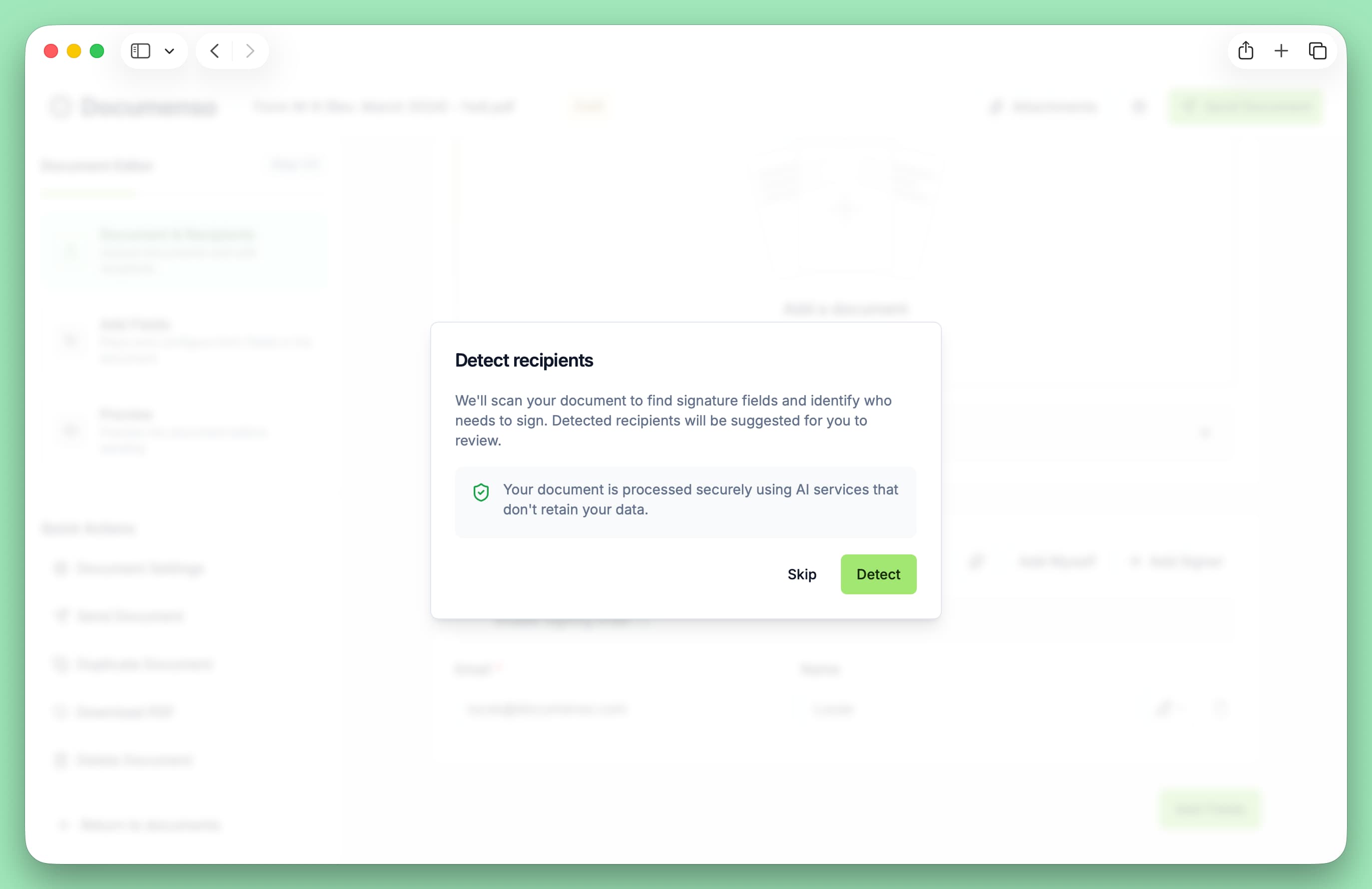
Wait for progress to finish, then review the suggested recipients.
Remove any incorrect entries, then click Add recipients to apply. Existing recipients and duplicates are preserved.
Detection is unavailable once an envelope is completed. You can re-run detection if you update the document; each run counts toward the rate limit.
Detect Fields
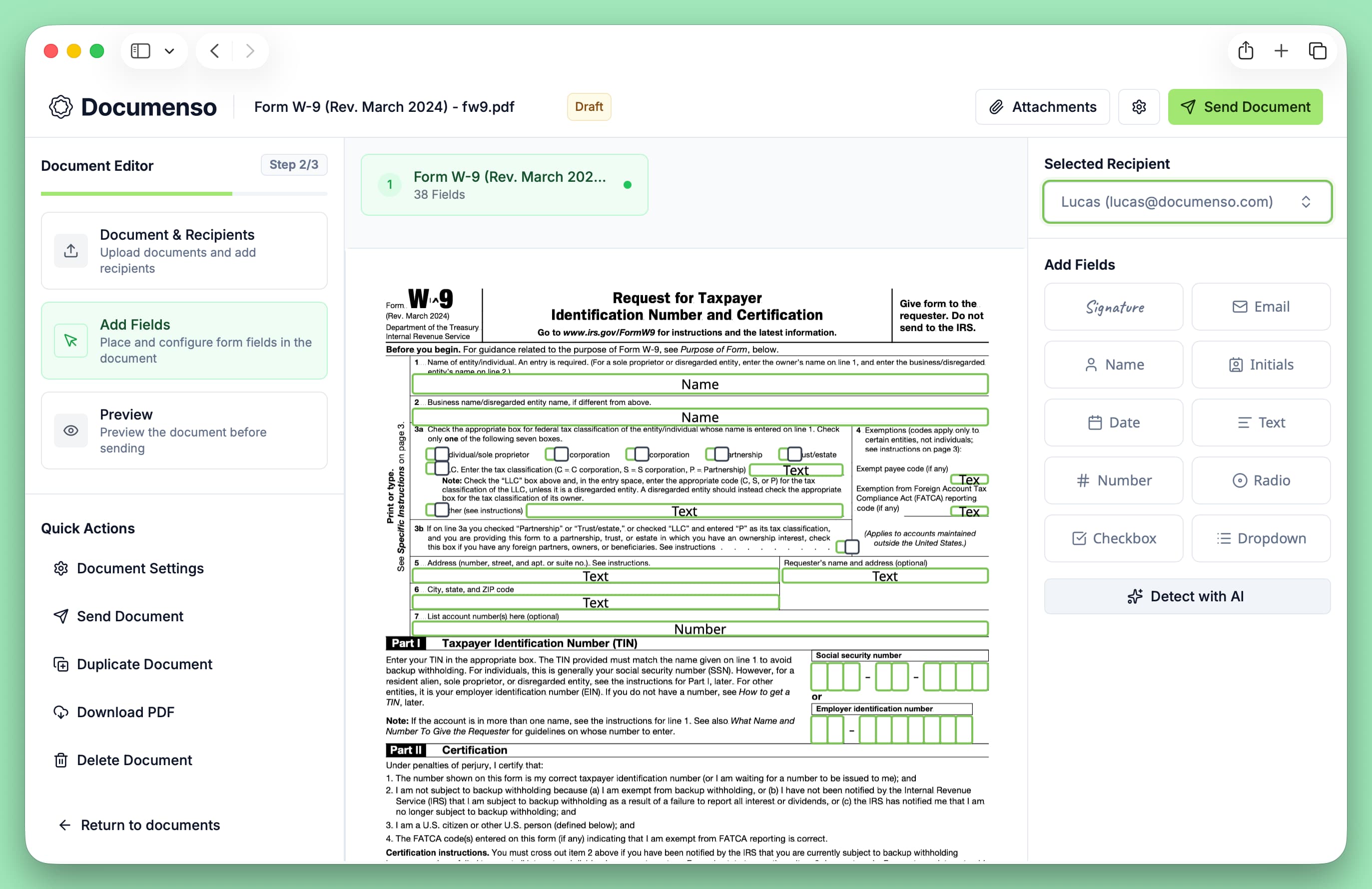
Use this to auto-place fields on the pages of a draft.
Open the envelope editor and switch to the Fields tab.
Select Detect with AI. Optionally provide context (e.g., "Alice is the tenant, Bob is the landlord") to improve recipient assignment.
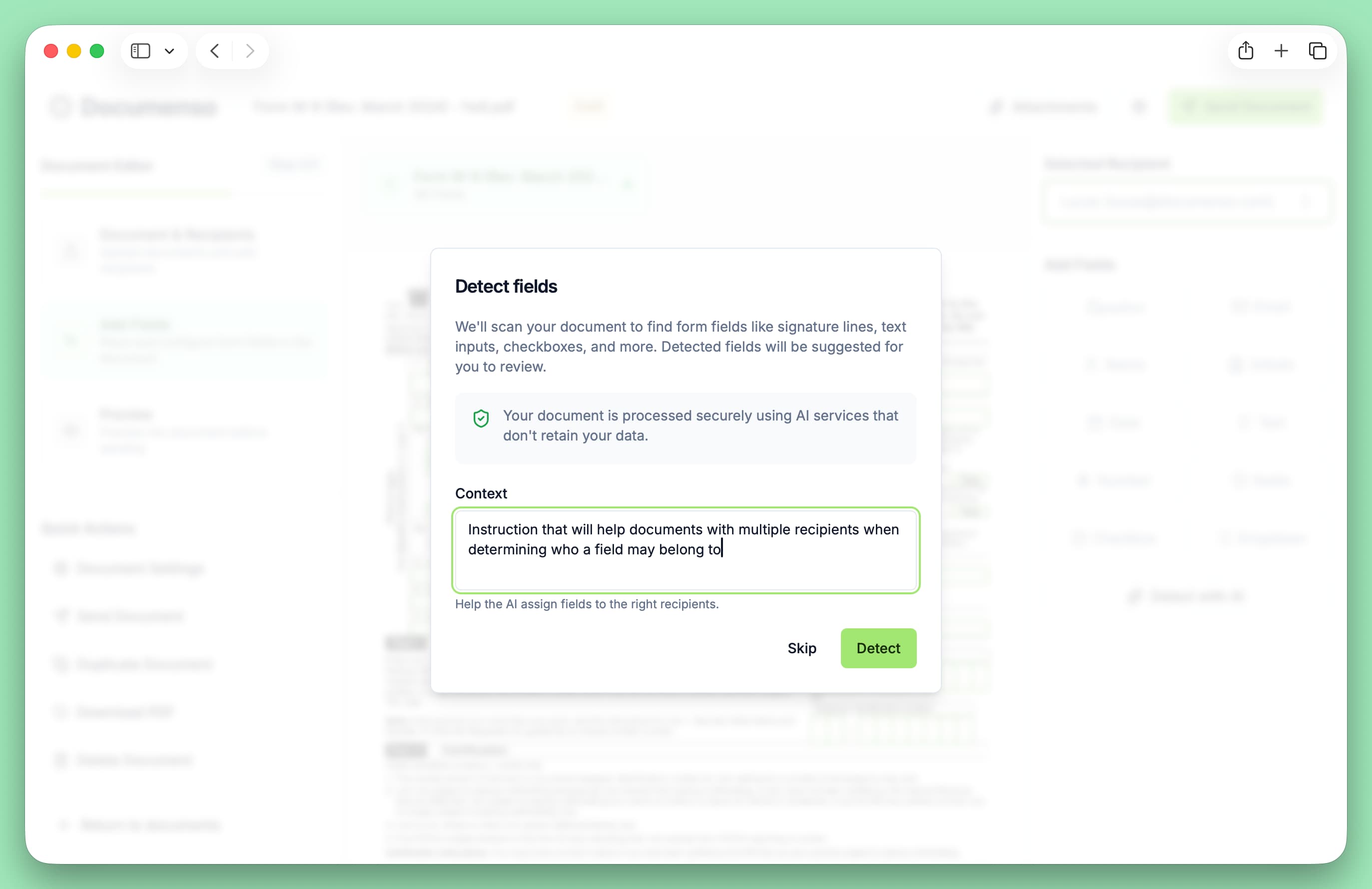
Watch the progress indicators (per page and total fields found).
Review the summary and choose Add fields to place them in the editor.
Works only for draft envelopes and teams with AI features enabled. Existing fields are masked during detection to avoid duplicates. Fields are assigned to recipients based on nearby labels and your context message; you can edit them after adding.
Best Practices
See Also
- Add Recipients - Manually add recipients to documents
- Add Fields - Manually place fields on documents
- AI Features (Self-Hosting) - Configure AI detection for self-hosted instances