Configuration
Configure Single Sign-On for your team using any OpenID Connect (OIDC) identity provider.
Supported Providers
Documenso supports any identity provider that implements the OpenID Connect (OIDC) protocol. Common providers include:
- Microsoft Entra ID (formerly Azure AD)
- Google Workspace
- Okta
- Auth0
- OneLogin
- JumpCloud
Setting Up SSO
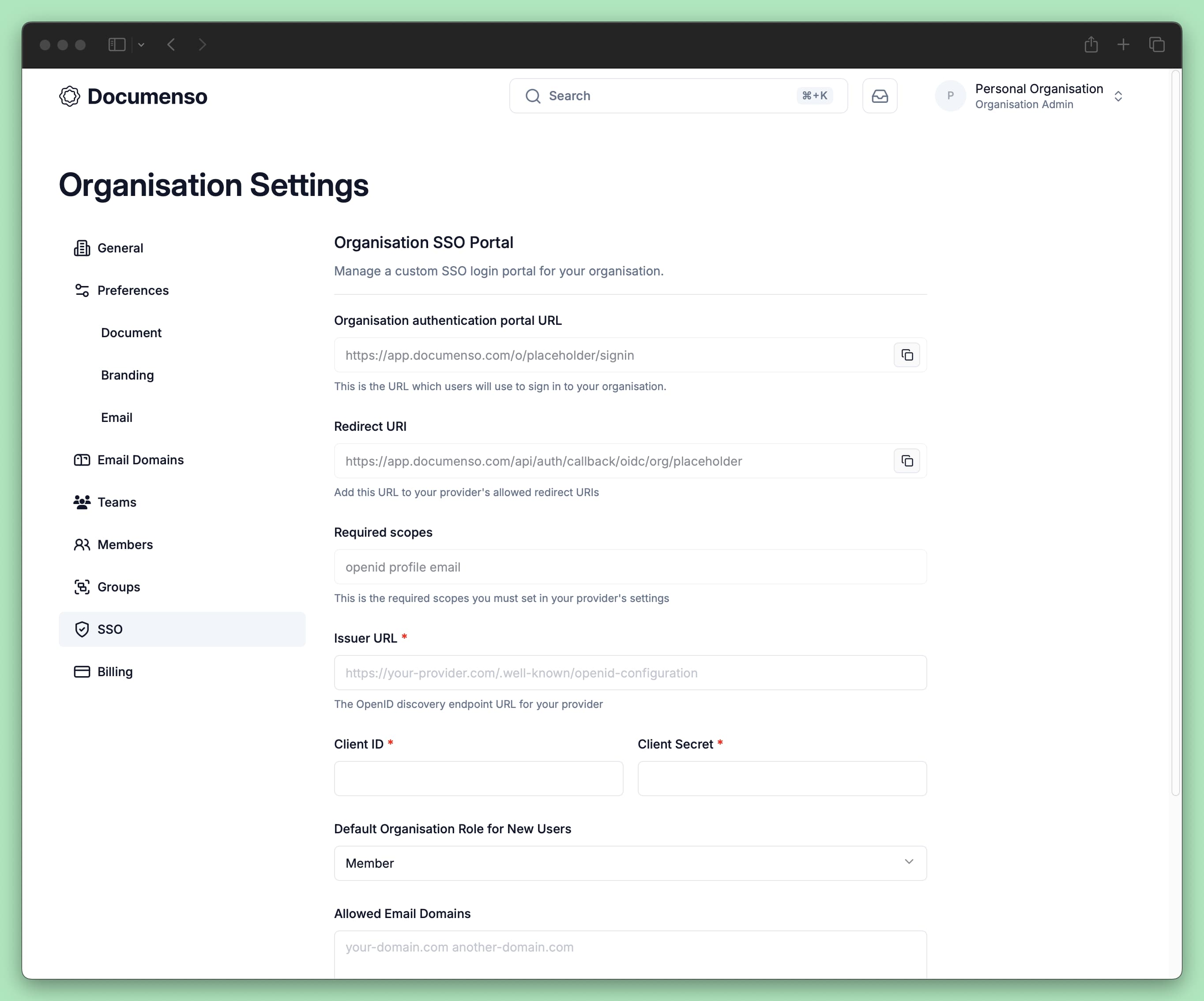
Get your redirect URI
At the top of the SSO settings page, you'll find the Redirect URI and Required Scopes. Copy these values - you'll need them when configuring your identity provider.
Configure your identity provider
In your identity provider's admin console, create a new OIDC application with:
- Redirect URI: The value from the Documenso SSO settings page
- Scopes:
openid,email,profile
After creating the application, note down:
- Client ID
- Client Secret
- OpenID Connect discovery URL (also called "well-known" URL)
Enter SSO configuration
Back in Documenso, enter the following:
- Issuer URL: Your provider's OpenID Connect discovery endpoint
- Client ID: The application client ID from your provider
- Client Secret: The application secret from your provider
Set allowed domains and default role
Configure which email domains can authenticate and what role new users receive (see sections below).
Enable SSO
Toggle Enable SSO portal and click Update to activate SSO for your team.
SSO Configuration Settings
Issuer URL
The OpenID Connect discovery endpoint for your identity provider.
| Provider | Issuer URL Format |
|---|---|
| Google Workspace | https://accounts.google.com/.well-known/openid-configuration |
| Microsoft Entra ID | https://login.microsoftonline.com/{tenant-id}/v2.0/.well-known/openid-configuration |
| Okta | https://{your-domain}.okta.com/.well-known/openid-configuration |
| Auth0 | https://{your-domain}.auth0.com/.well-known/openid-configuration |
Client Credentials
- Client ID: The unique identifier for your OIDC application
- Client Secret: The secret key used to authenticate your application
Store your client secret securely. If compromised, regenerate it immediately in your identity provider.
Default Organisation Role
The role assigned to users when they first sign in through SSO. You can change individual roles after they've joined.
Allowed Email Domains
Restrict which email domains can authenticate through your SSO portal. Enter domains separated by spaces:
example.com subsidiary.example.comLeave empty to allow any domain authenticated by your identity provider.
Without domain restrictions, anyone who can authenticate with your identity provider can join your team.
Allow Personal Organisations
Controls whether users signing in via SSO for the first time also receive their own personal organisation in addition to joining your organisation.
- Enabled: New SSO users get a personal organisation where they can create and manage their own documents independently.
- Disabled: New SSO users only join your organisation and do not receive a personal organisation.
User Provisioning
When a user signs in through your SSO portal for the first time:
Verify identity
Documenso verifies their identity with your provider.
Create or link account
A new account is created, or linked if the email already exists.
Add to organisation
The user is added to your organisation with the default role.
Grant access
They can immediately access organisation documents.
Users provisioned through SSO:
- Cannot change their email address
- Cannot set a Documenso password (they must use SSO)
- Are removed from SSO access if removed from your identity provider
Signing In with SSO
Once SSO is enabled, your organisation's SSO portal URL is displayed at the top of the SSO settings page. Share this URL with your members so they can sign in through your identity provider.
SSO-only enforcement is not currently available. Users who have an existing Documenso account with a password can still sign in with their original method in addition to SSO.
Troubleshooting
Testing Your SSO Portal
After configuring SSO, verify it works correctly:
Open portal
Navigate to your portal URL (found at the top of the organisation SSO settings page).
Sign in
Sign in with a test account from your configured domain.
Verify provisioning
Verify the user is provisioned with the correct organisation role.
Custom Subdomain
To reduce friction for your users, create a custom subdomain that redirects to your SSO portal link. For example, documenso.your-organisation.com can redirect to the portal URL shown in your SSO settings.
See Also
- Manage Members - Configure team member roles and permissions
- Create a Team - Set up additional teams in your organisation