Send Your First Document
Upload a document, add recipients, and send for signing.
Prerequisites
- A Documenso account.
- A PDF document to send for signing.
Limitations
- Maximum file size: 50MB (configurable for self-hosted)
- Supported format: PDF only
- Maximum 5 documents can be uploaded at once on standard plans
Send a Document
Upload your document
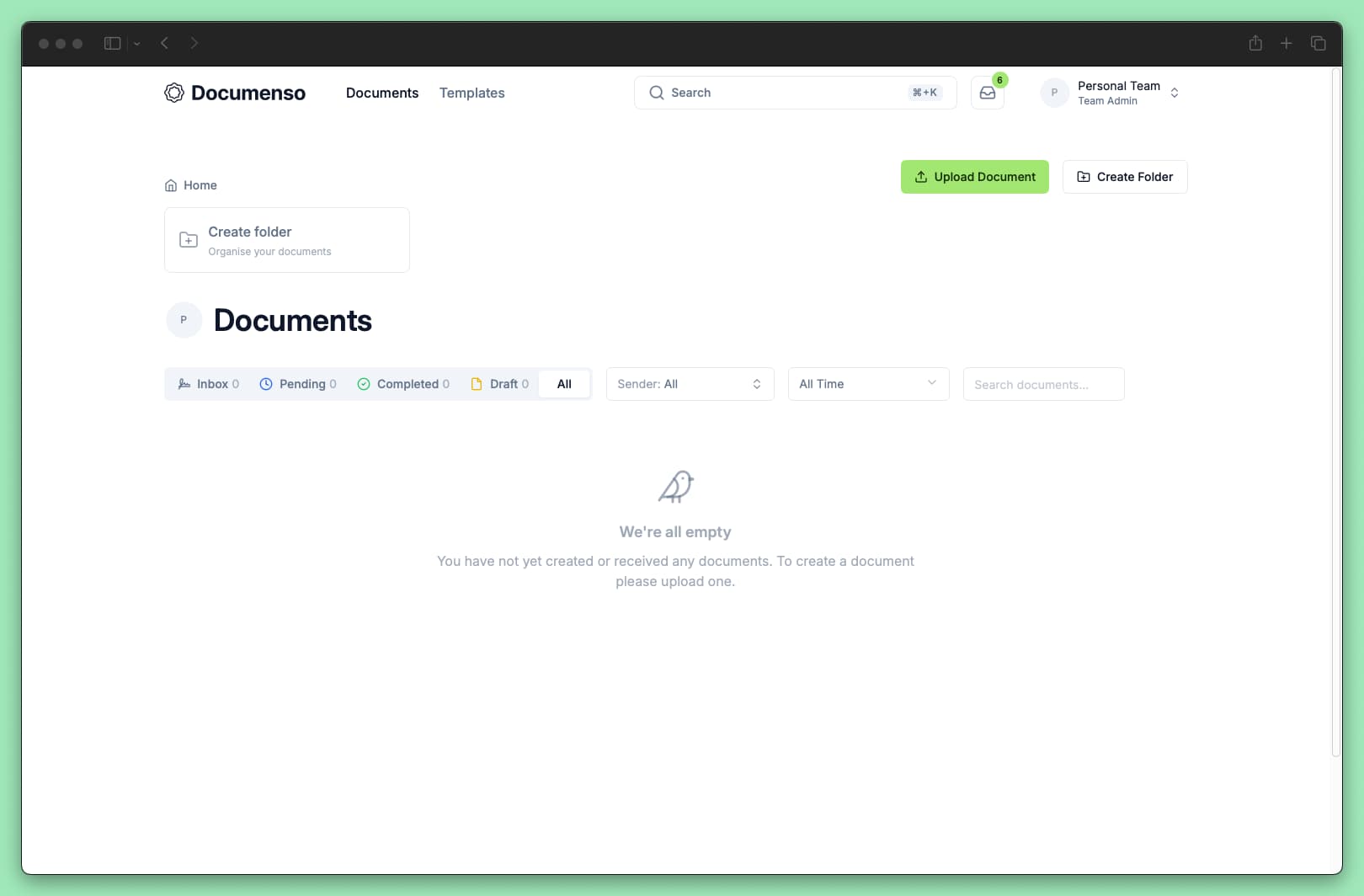
- Go to your Documents dashboard
- Click Upload Document in the top right
- Select your PDF file or drag and drop it into the upload area
After uploading, you'll be taken to the document editor.
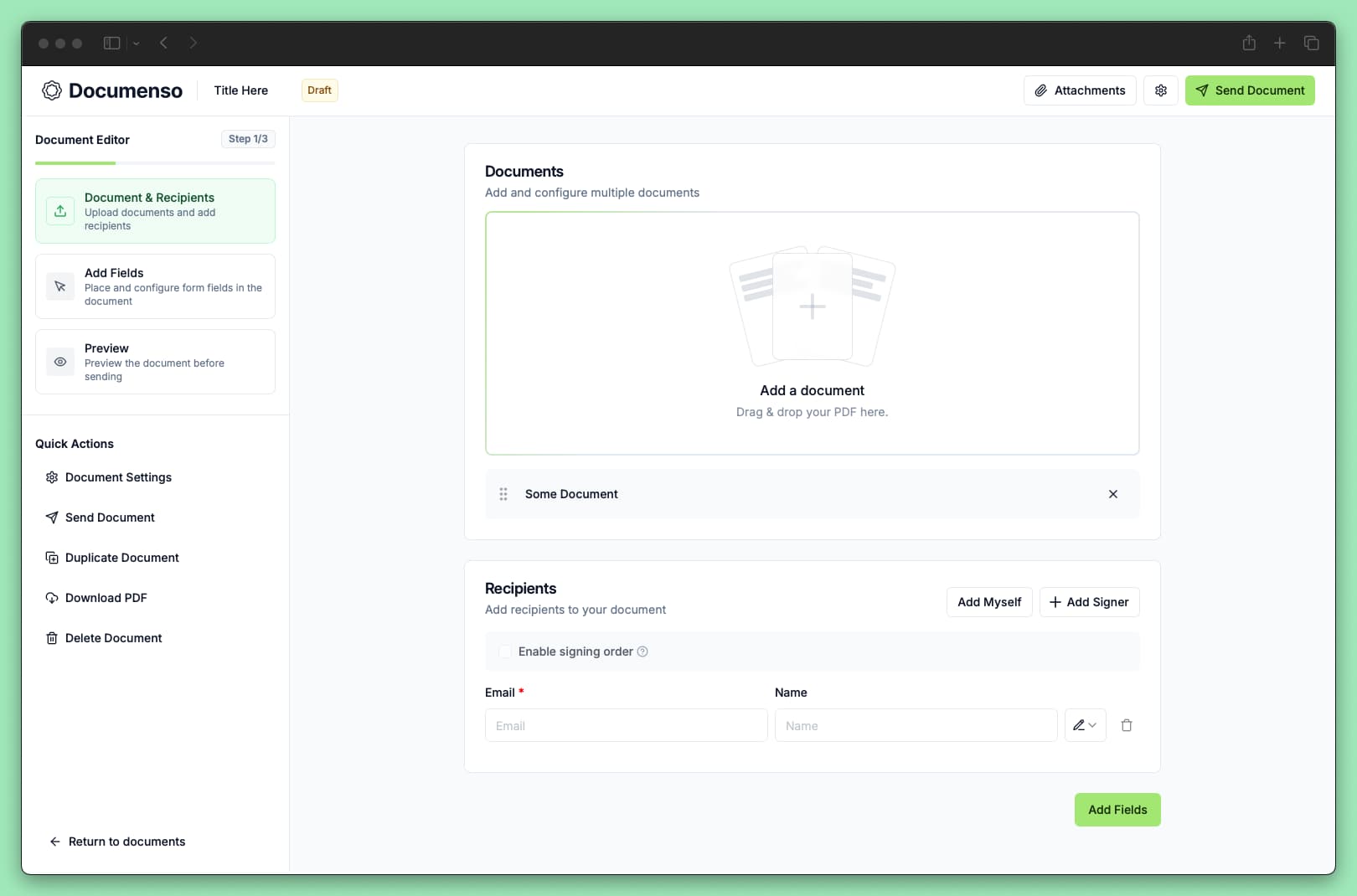
Add recipients
In the editor, add the people who must take an action or receive a copy of the document.
- Click + Add Signer
- Enter the recipient's email address and name
- Select their role:
- Signer - Must sign the document
- Approver - Must approve (signature optional)
- Viewer - Must confirm they viewed it
- CC - Receives a copy after completion (no action required)
Add additional recipients by clicking + Add Signer again.
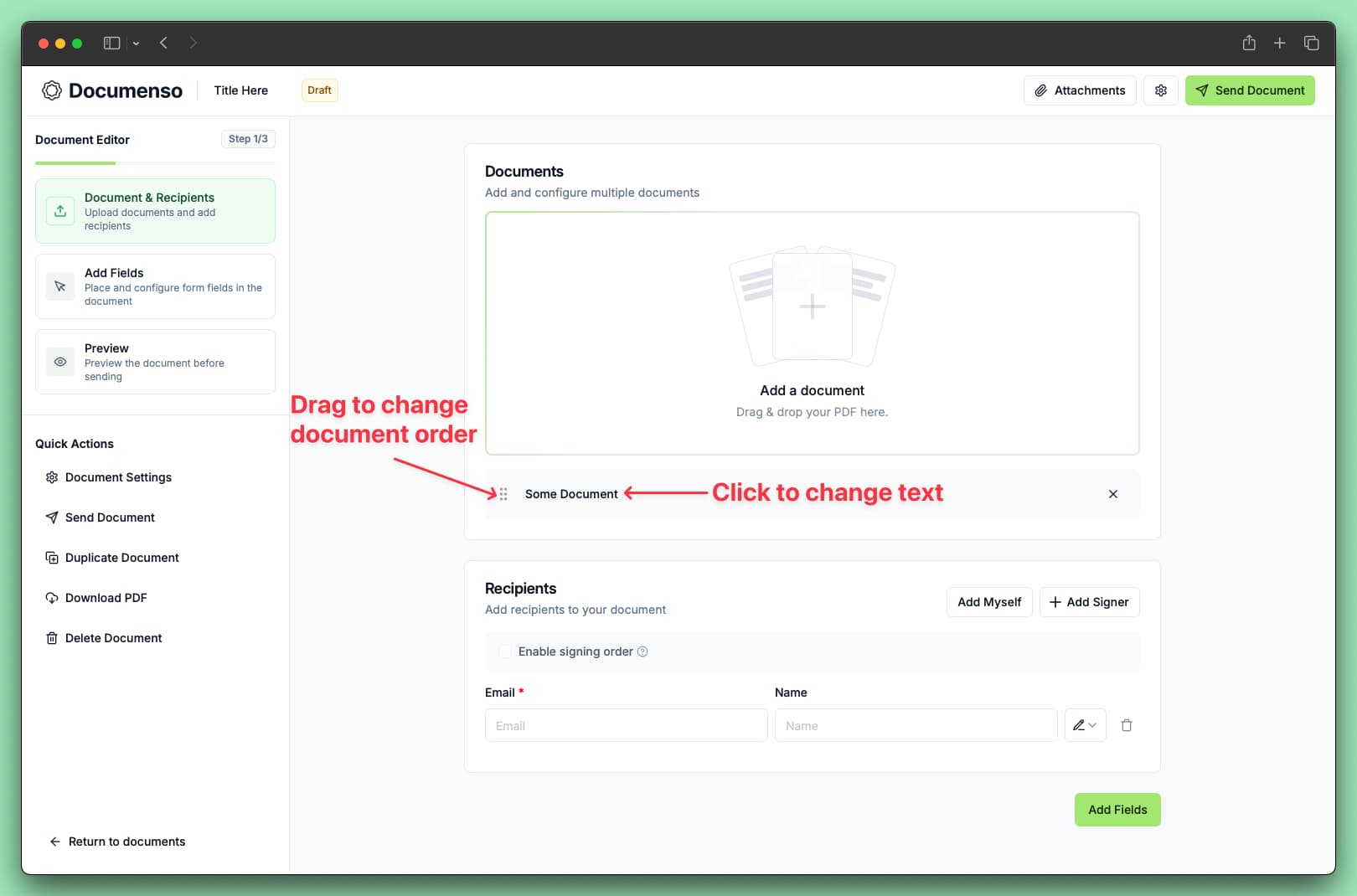
Enable Signing Order if recipients need to sign in a specific sequence.
Add signature fields
Navigate to the Add Fields section. For each recipient:
- Select the recipient in the right sidebar
- Drag a Signature field onto the document where they should sign
- Optionally add other fields like Name, Date, or Initials
Fields are color-coded by recipient. Resize fields by dragging their corners.
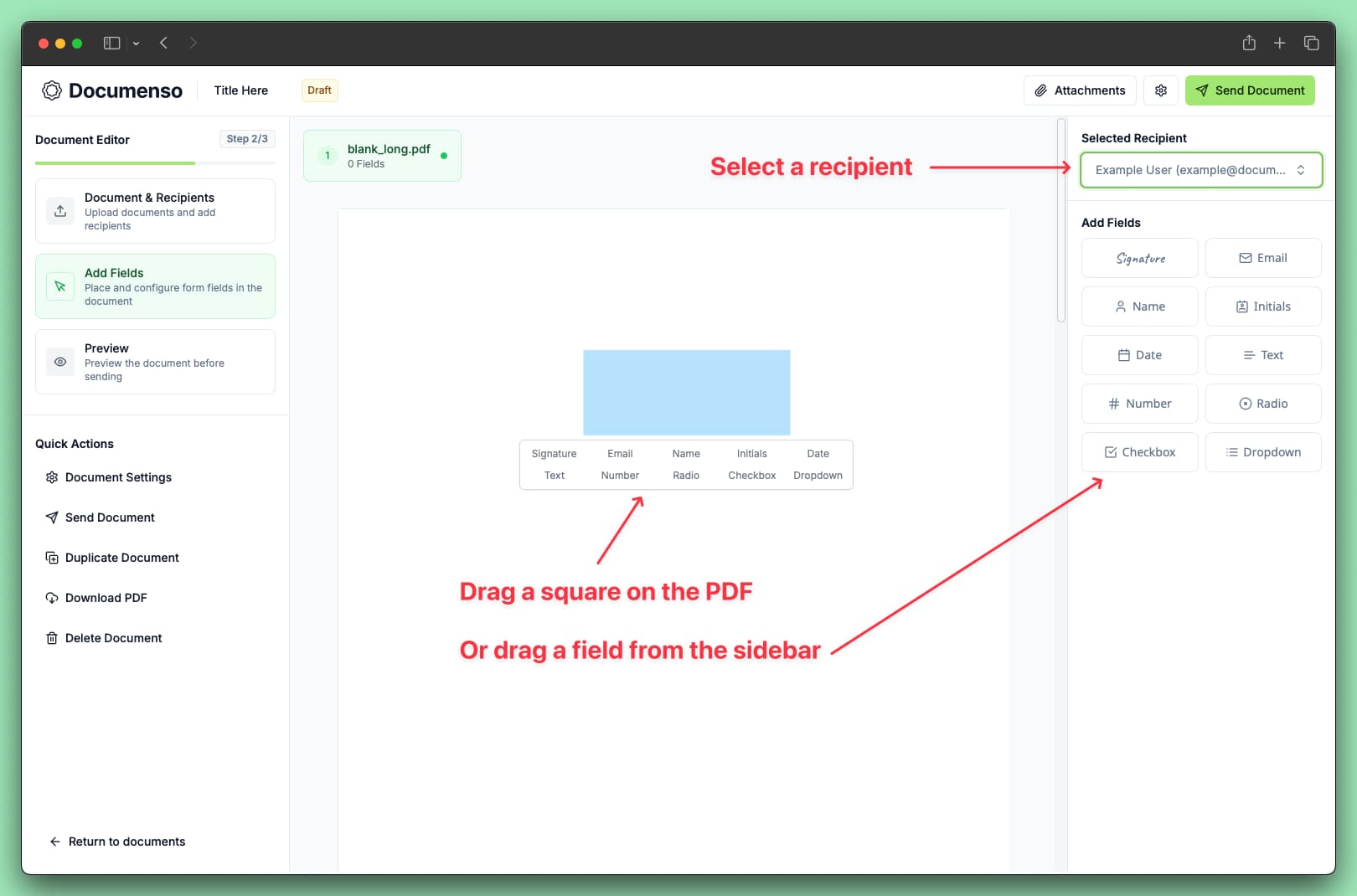
At minimum, each signer needs one Signature field assigned to them.
Send the document
- Click Send Document in the left sidebar (or navigate to the Preview section)
- Review that everything looks correct
- Click Send
Your document is now sent.
What Happens Next
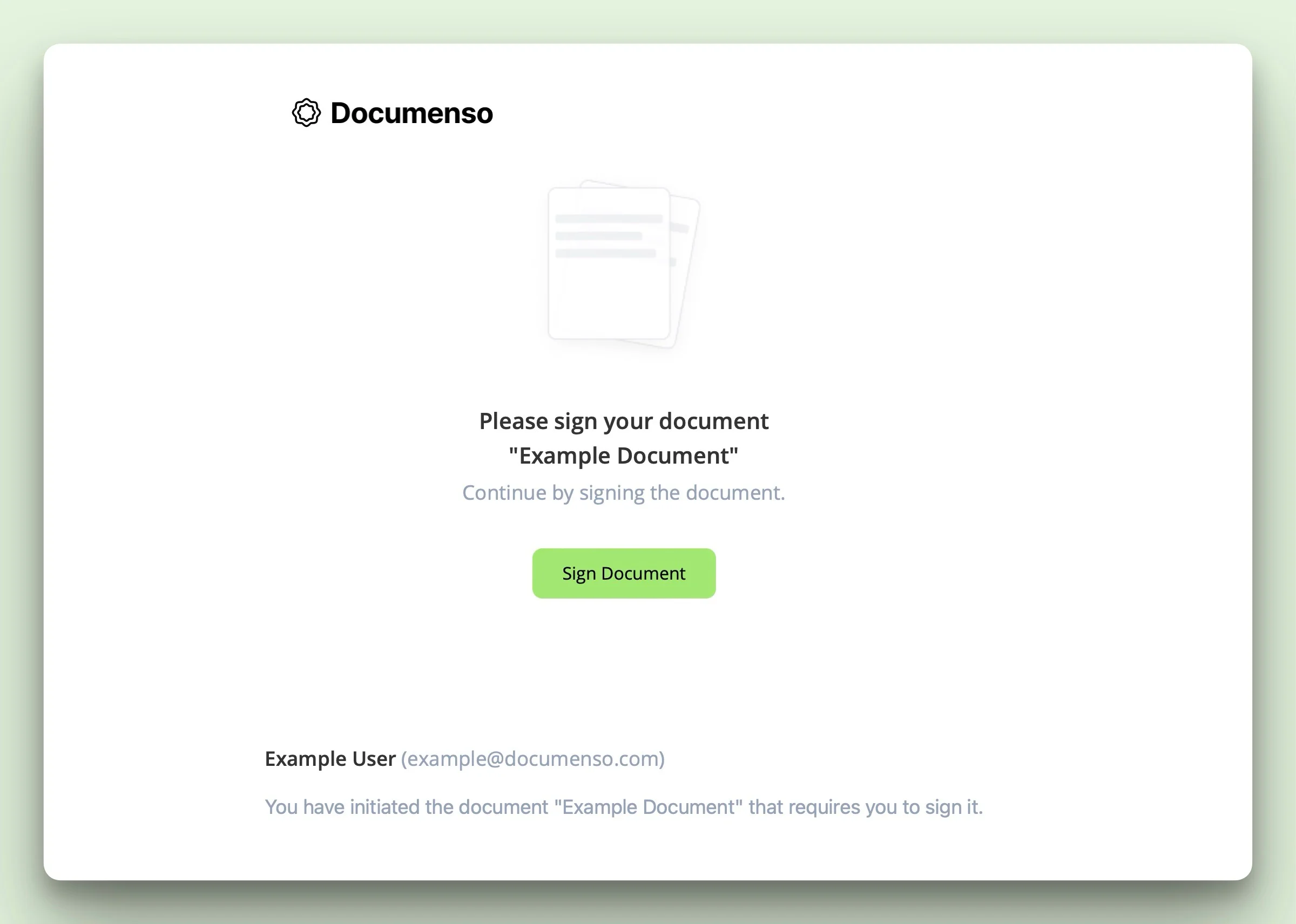
- Recipients receive an email with a link to sign the document
- Recipients sign by clicking the link and completing their assigned fields
- You get notified when each recipient completes their action
- Everyone receives a copy of the fully signed document once all signatures are collected
You can track progress from your Documents dashboard. Click on any document to see which recipients have signed and which are pending.
See Also
- Create Templates - Save time on documents you send repeatedly
- Direct Links - Let recipients sign without email invitations
- Upload and Configure - Customize document settings for more control